 SurgePix Docs
Generate, Edit, Export & Share Slide Deck
Think SurgePix can only churn out mediocre 70-point PPTs at one go?
Stick around—you’re about to unlock its full potential.
AI generation is just the starting line.
Ever wondered:
- How to nail high-quality PPT drafts on the first try?
- How to polish AI-generated PPTs quickly to match your exact needs?
- How can the AI assistant help tweak images, edit text, and adjust layouts effortlessly?
- How to download your polished PPT creations?
- Is there a way to generate a shareable link with one click?
This walkthrough follows a real-world workflow, breaking down the entire SurgePix process from generation → editing → export & sharing.
Master it, and you’ll have an all-in-one tool to build, refine, and share PPTs seamlessly.
1. Two Quick Ways to Generate a PPT
Method 1: Generate From Templates
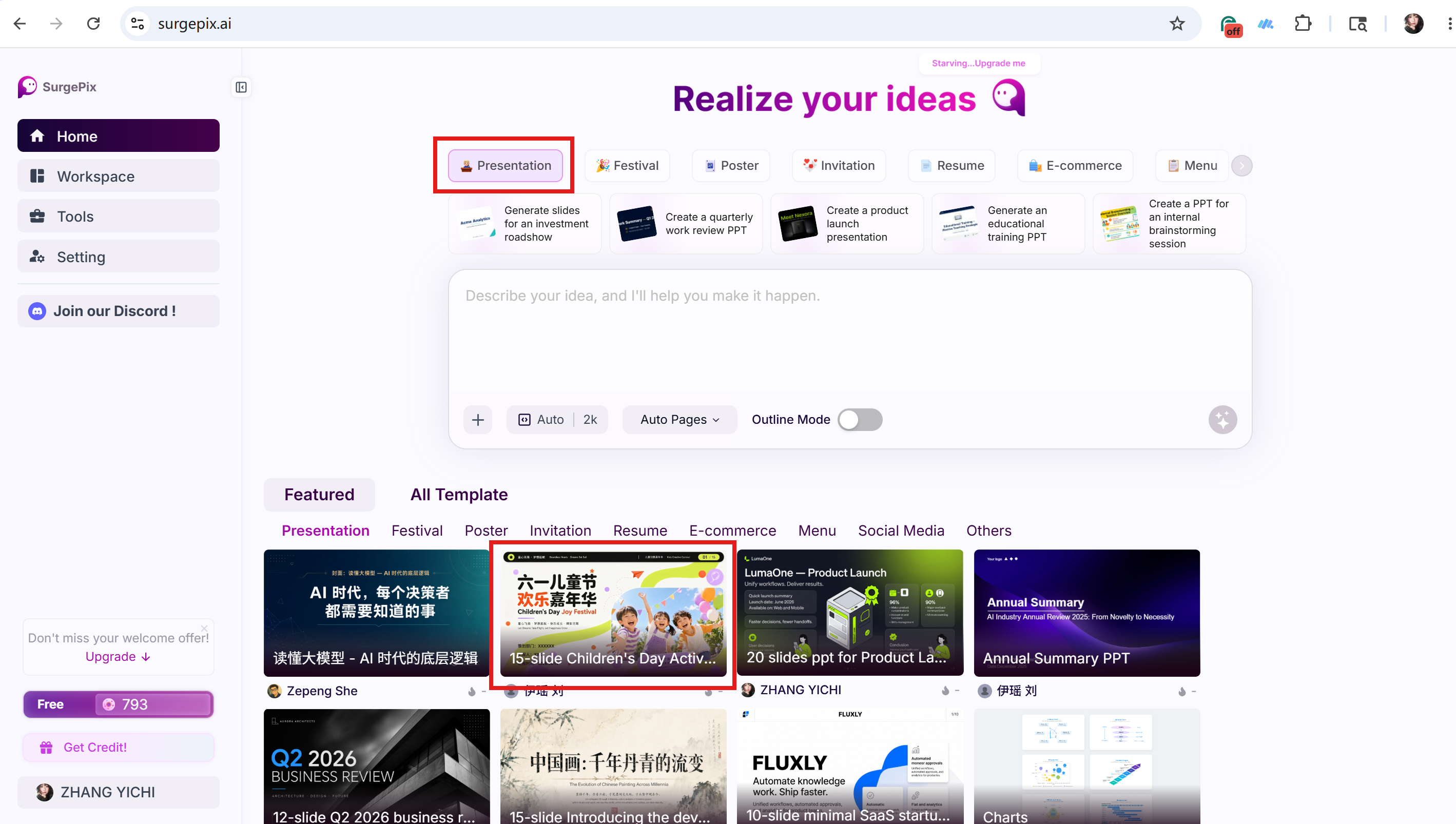
Launch SurgePix and head to the Presentation category on the homepage to browse ready-made templates.
Every template offers two flexible options:
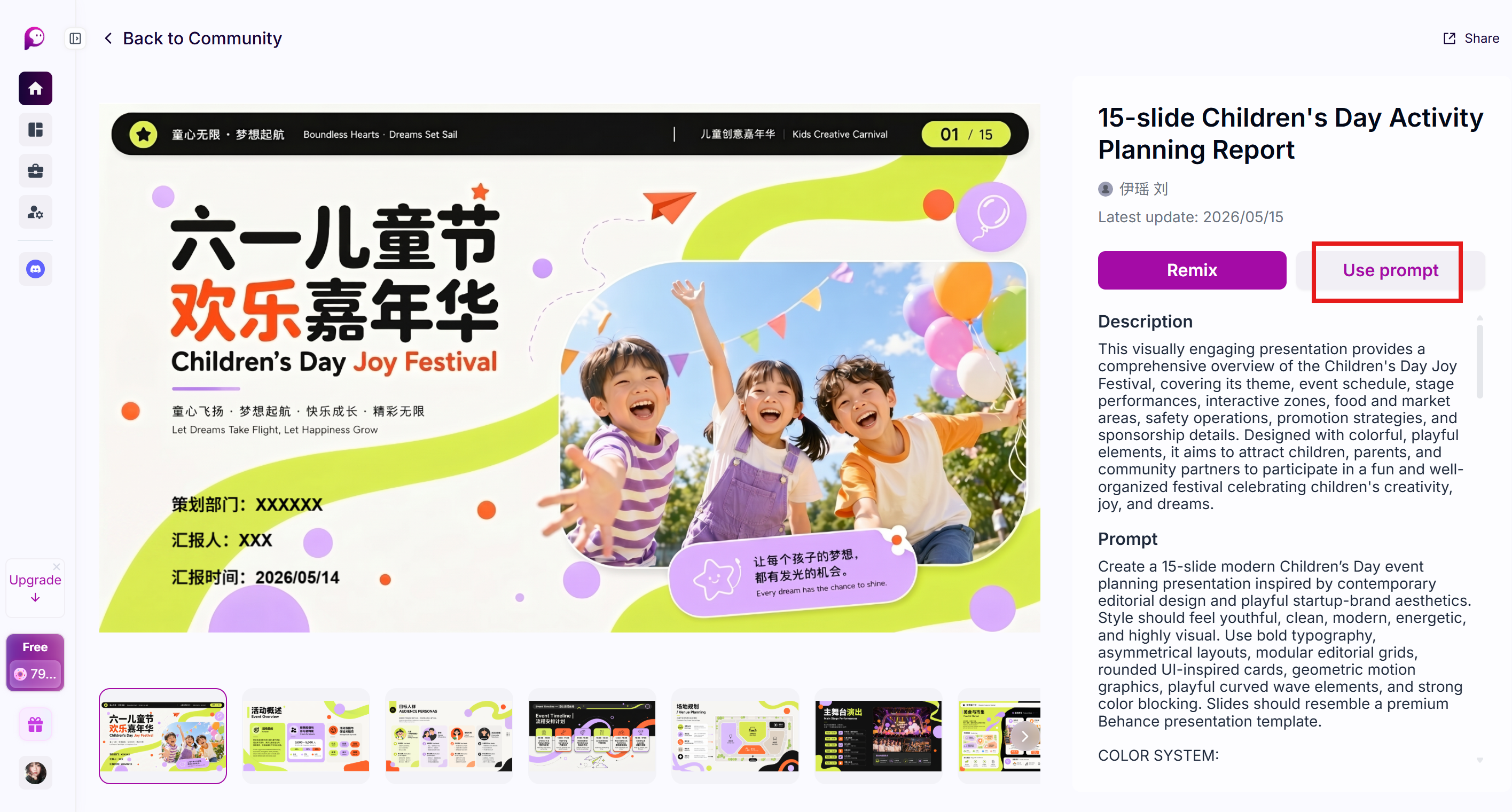
- Use Prompt: Ideal if you like a template’s overall structure and logic but need custom tweaks. Tap it, and the template’s built-in prompt will auto-fill the input box. You can edit, add, or remove content before regenerating your PPT.
- Remix: Perfect when a template is already nearly what you want—no full regeneration needed. Hit Remix to jump straight into the editing page, where you can rewrite text and replace images locally. For example, repurpose a Children’s Day Carnival template into a company team-building layout with just a few key edits.
Method 2: Upload Outline + Brief Description for Direct Generation
If you already have a clear structure in mind, upload your outline file first, then add a short prompt to state your requirements (e.g., Create a business-style Q2 quarterly report PPT), and hit generate.
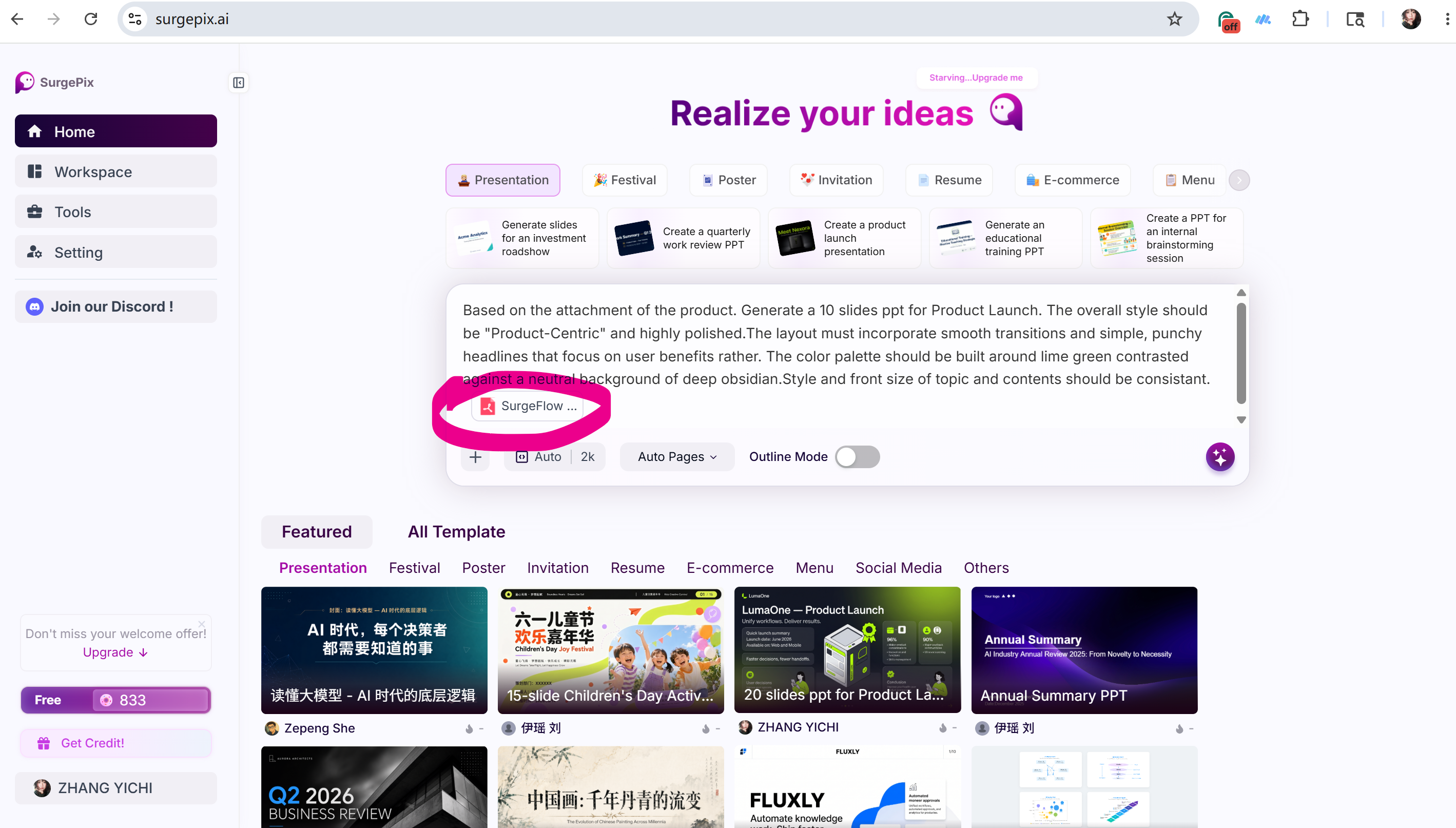
💡 Pro Tip: Whether you start with a template or a custom prompt, always upload an outline. SurgePix’s model excels at converting text into visual logic. A clear outline drastically cuts down random unsatisfactory results and saves you valuable credits.
2. While Generating: Freely Tackle Other Tasks
Two key perks during the PPT generation process:
Background Generation: You can switch to other tabs and work on other tasks. The generation won’t be interrupted as long as you keep the browser tab open.
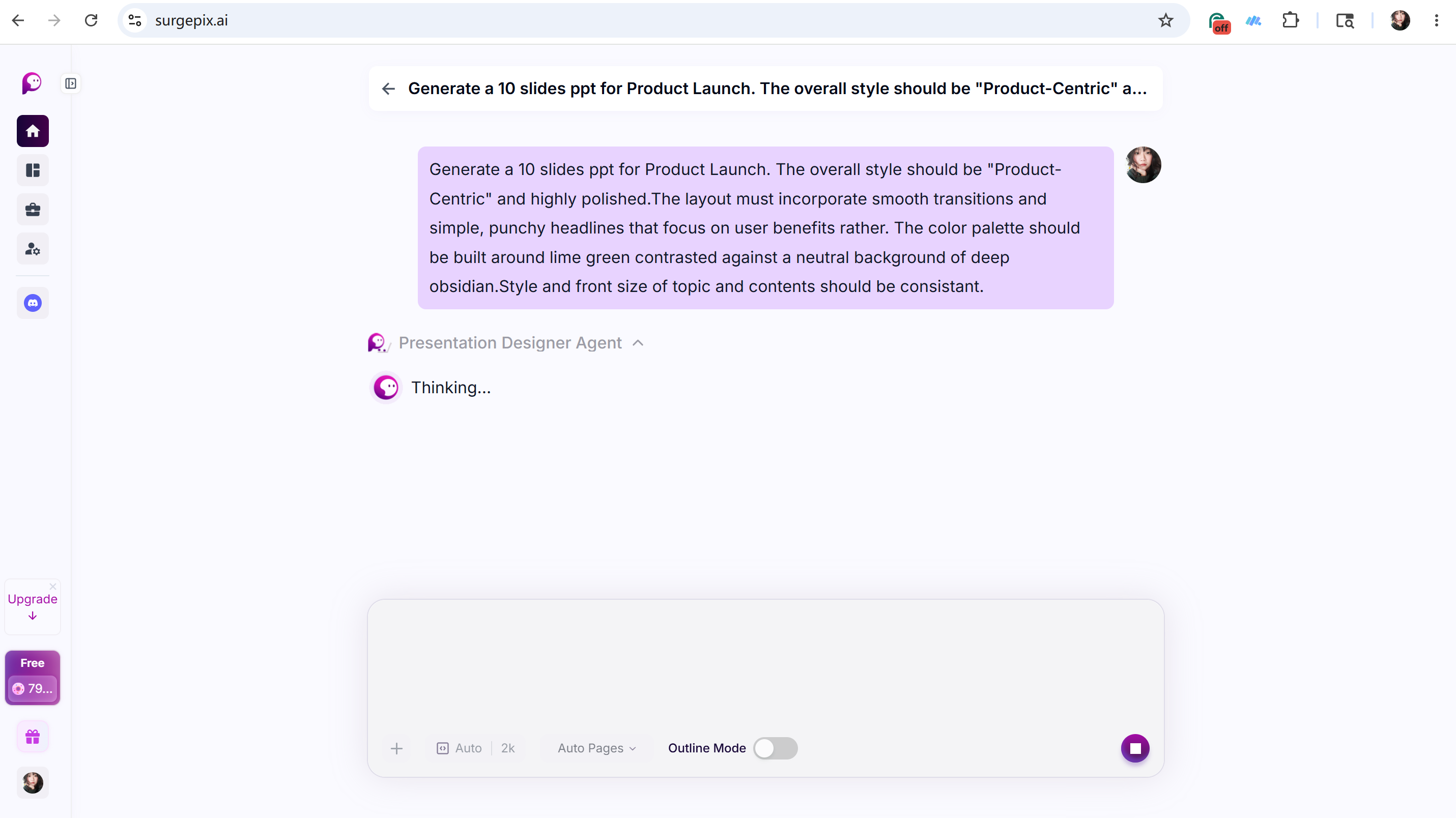
View AI Thinking Process: SurgePix is powered by the full GPT-Image-2 model, which displays its real-time reasoning process while creating your PPT.
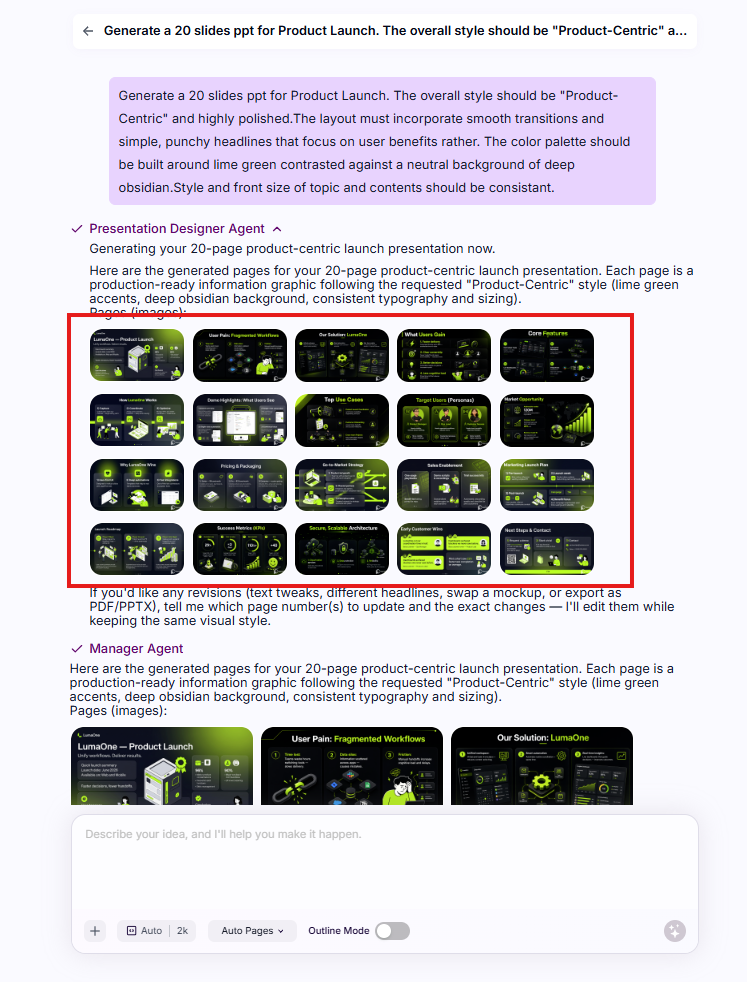
3. After Generation: 3 Follow-Up Workflows
Once your PPT is ready, choose one path based on how satisfied you are with the draft:
- Unhappy with the overall style: Add follow-up instructions directly in the chat (e.g., Switch to a dark background or Simplify the overall design). The AI will optimize the existing draft accordingly.
- Happy with the layout, need minor tweaks: Click Edit All to enter the full editing mode for page-by-page fine-tuning.
- Fully satisfied with the result: Enter the editing page via Edit All to download and export the complete file.
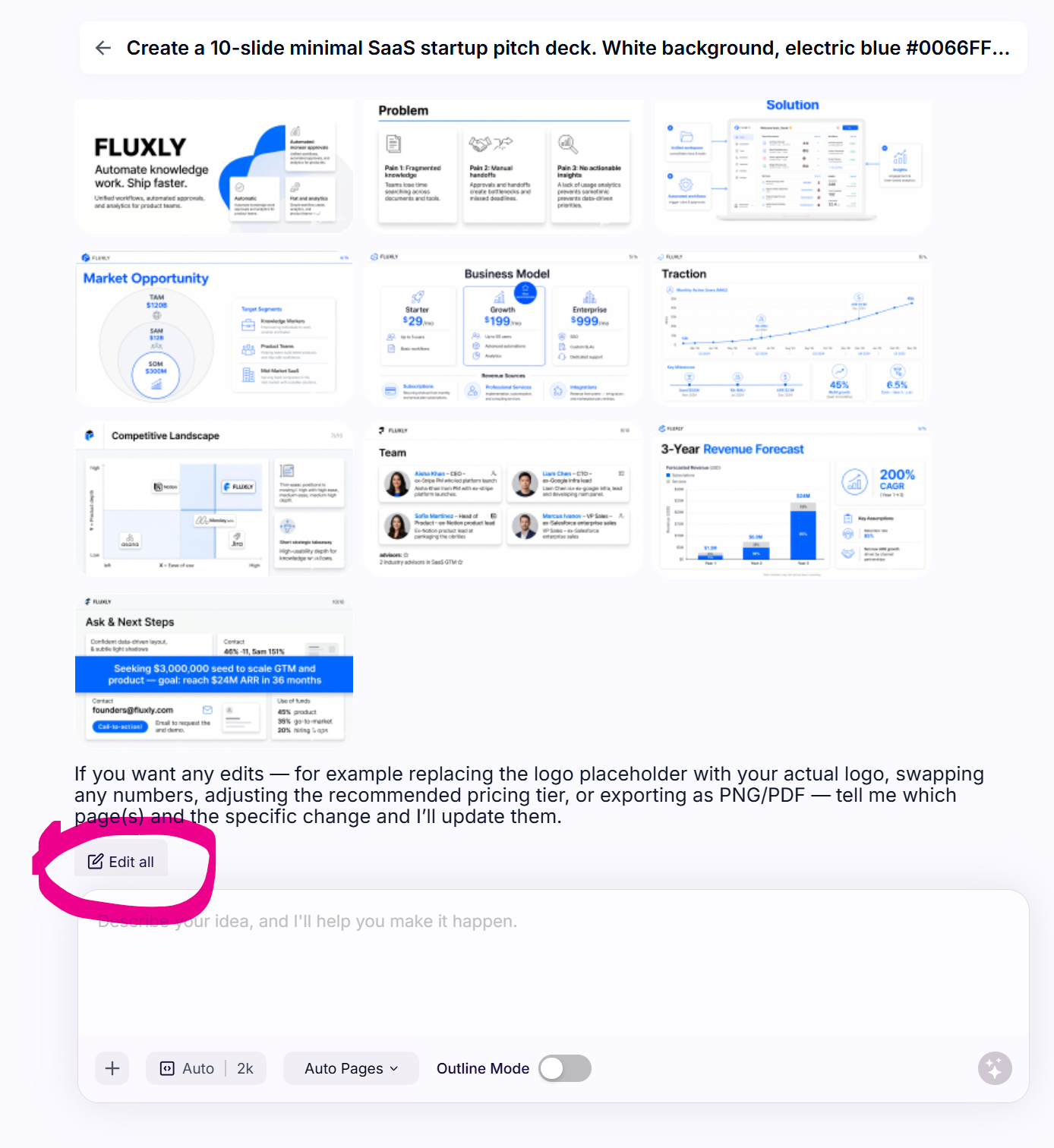
4. PPT Editing: AI Smart Assistant + Standard Editing Tools
SurgePix’s editing system has two core functions: AI-powered natural language editing, and a full suite of manual editing tools to cover every adjustment need.
AI Assistant Editing
On the canvas page, click the AI assistant icon in the bottom right corner. Select a single PPT page, highlight any element, and give plain-language commands.
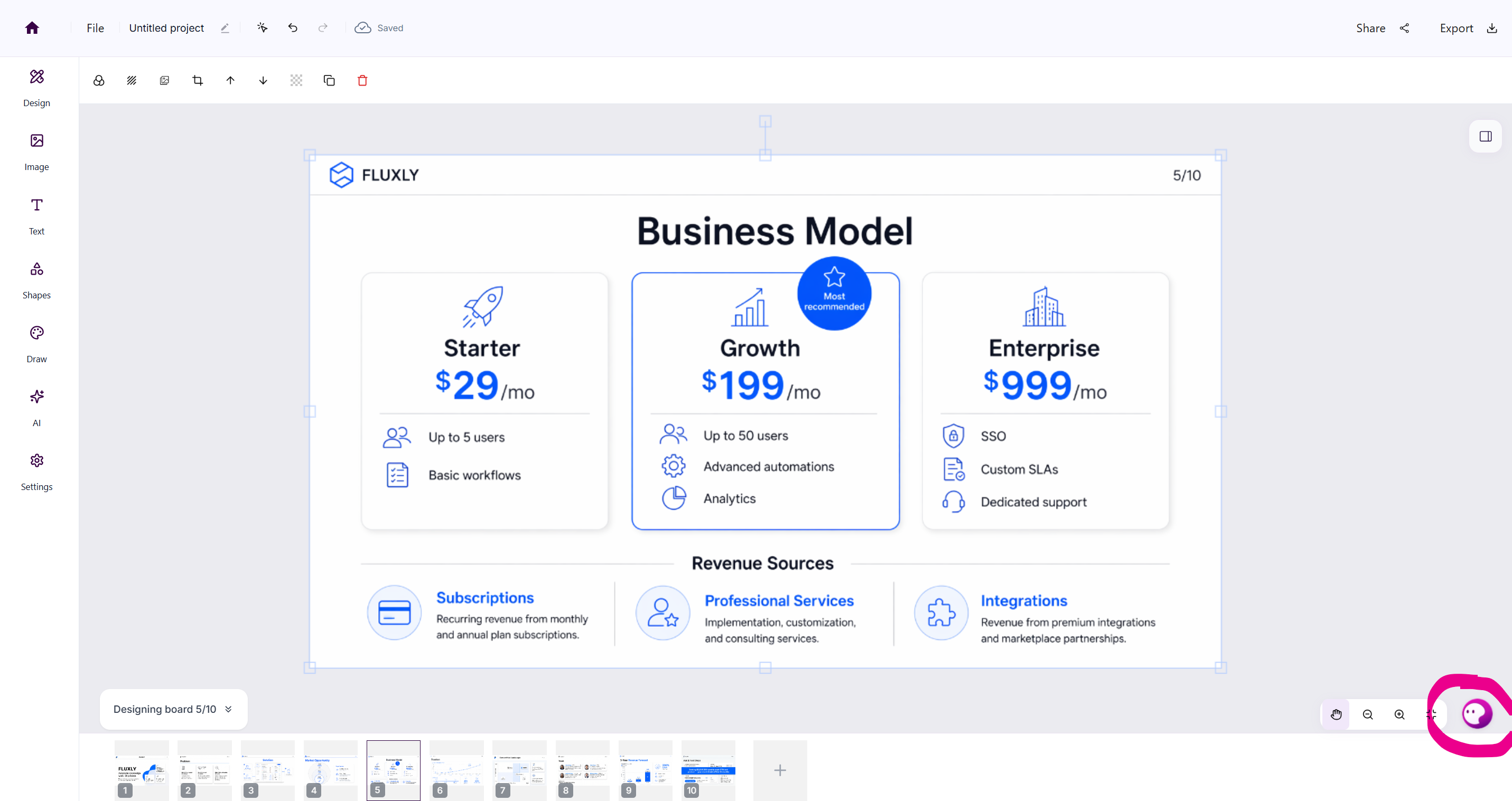
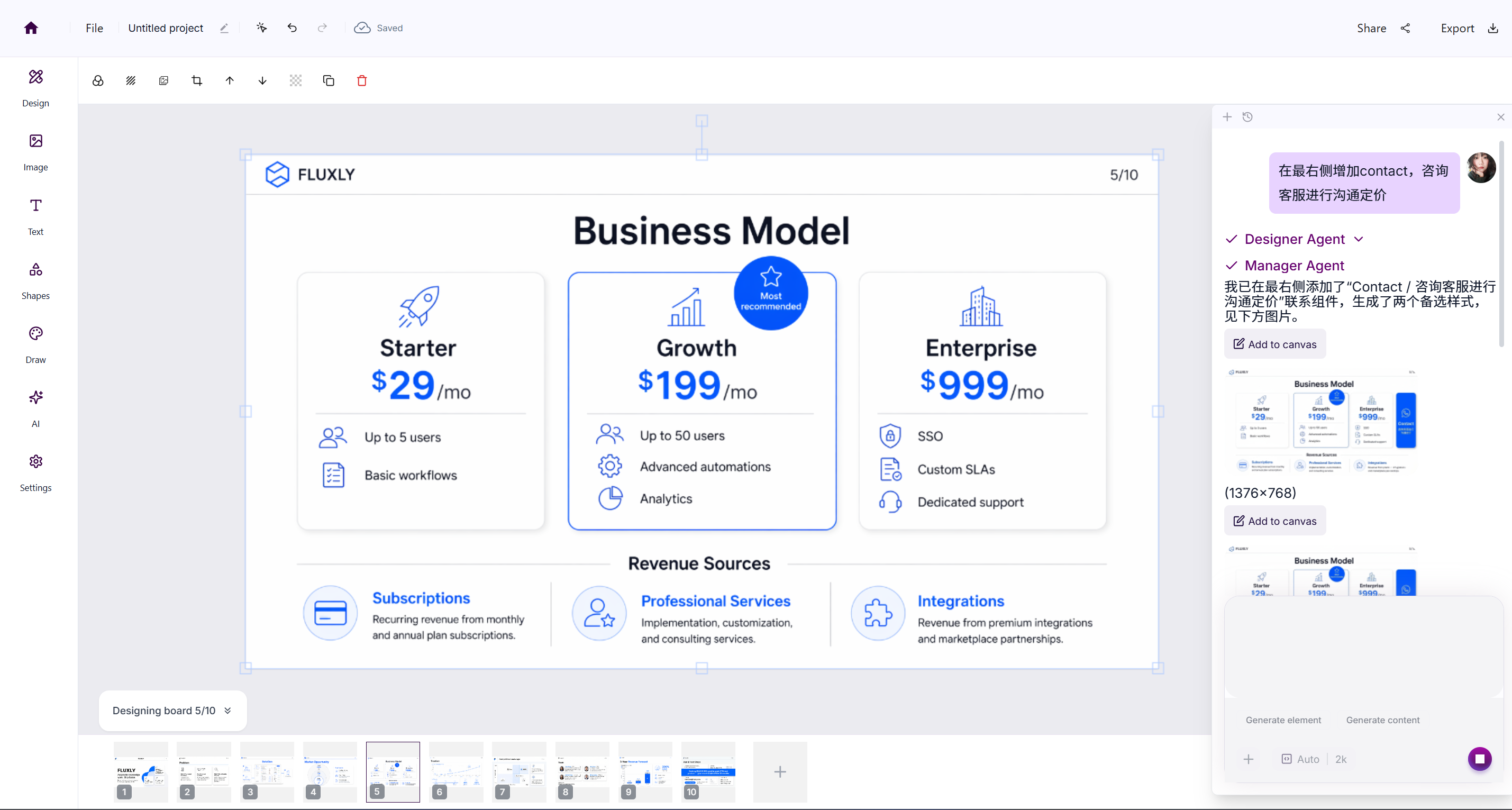
Quick Reference for Common AI Operations:
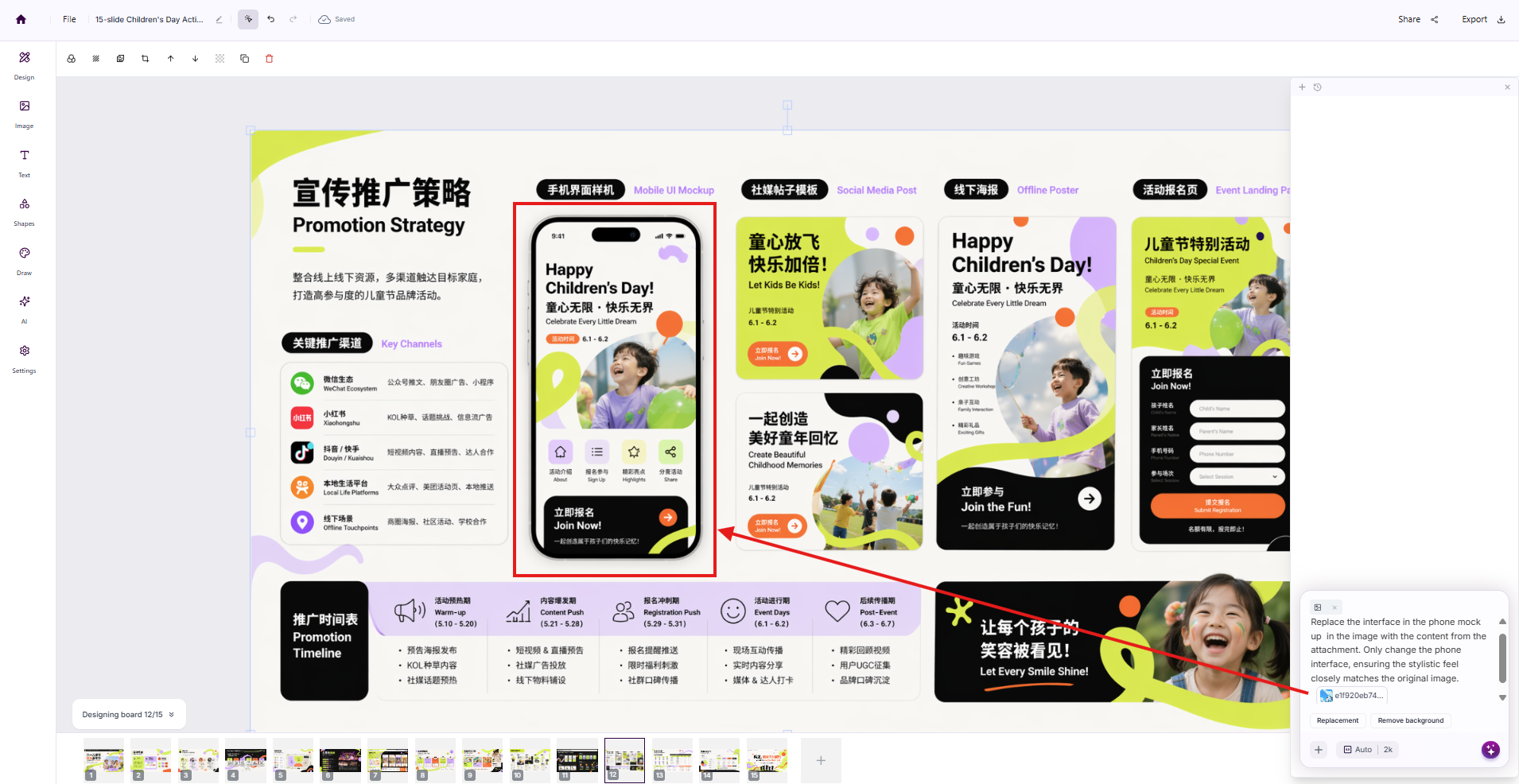
- Images / Graphics——Replace main subjects, generate new visuals, remove backgrounds
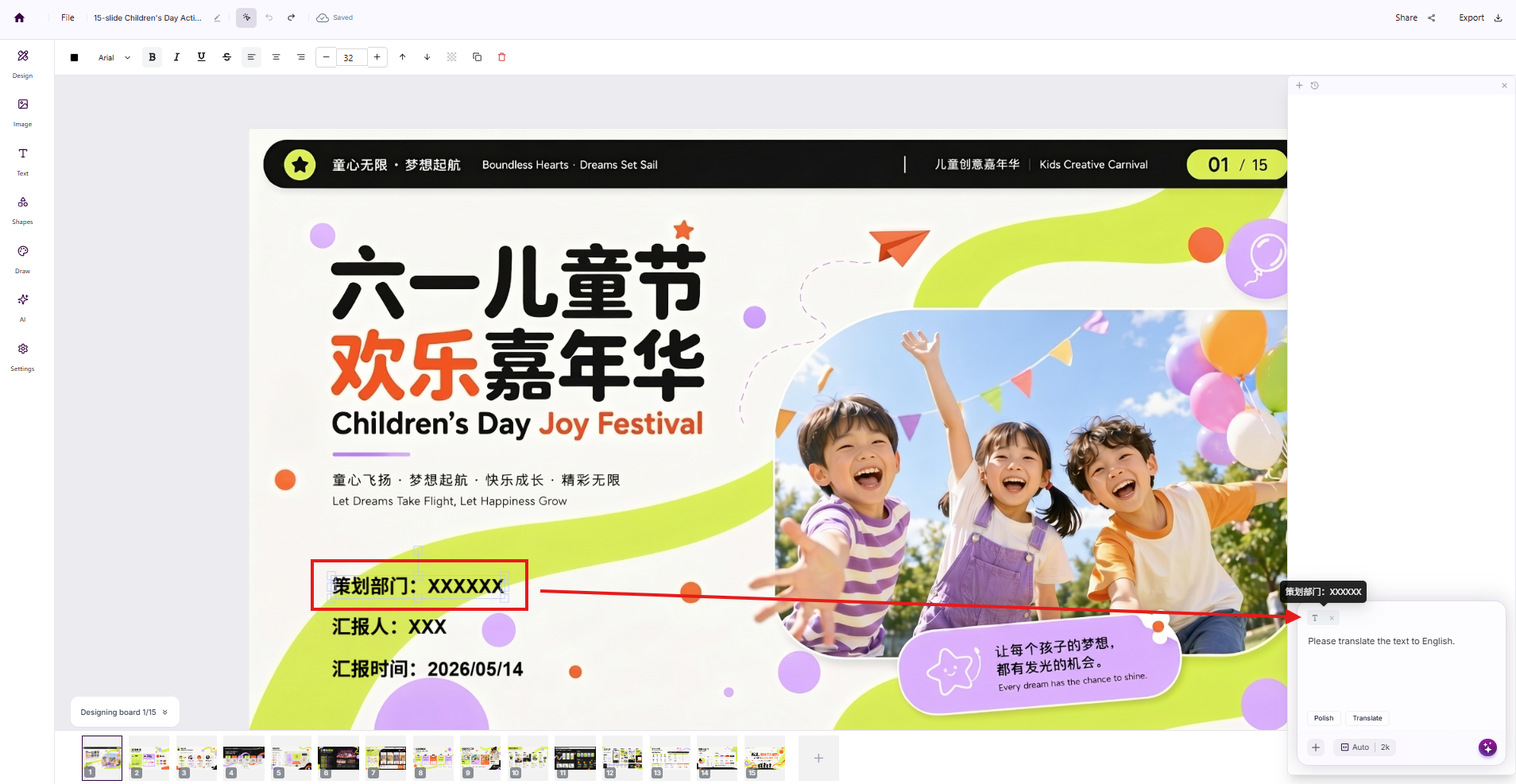
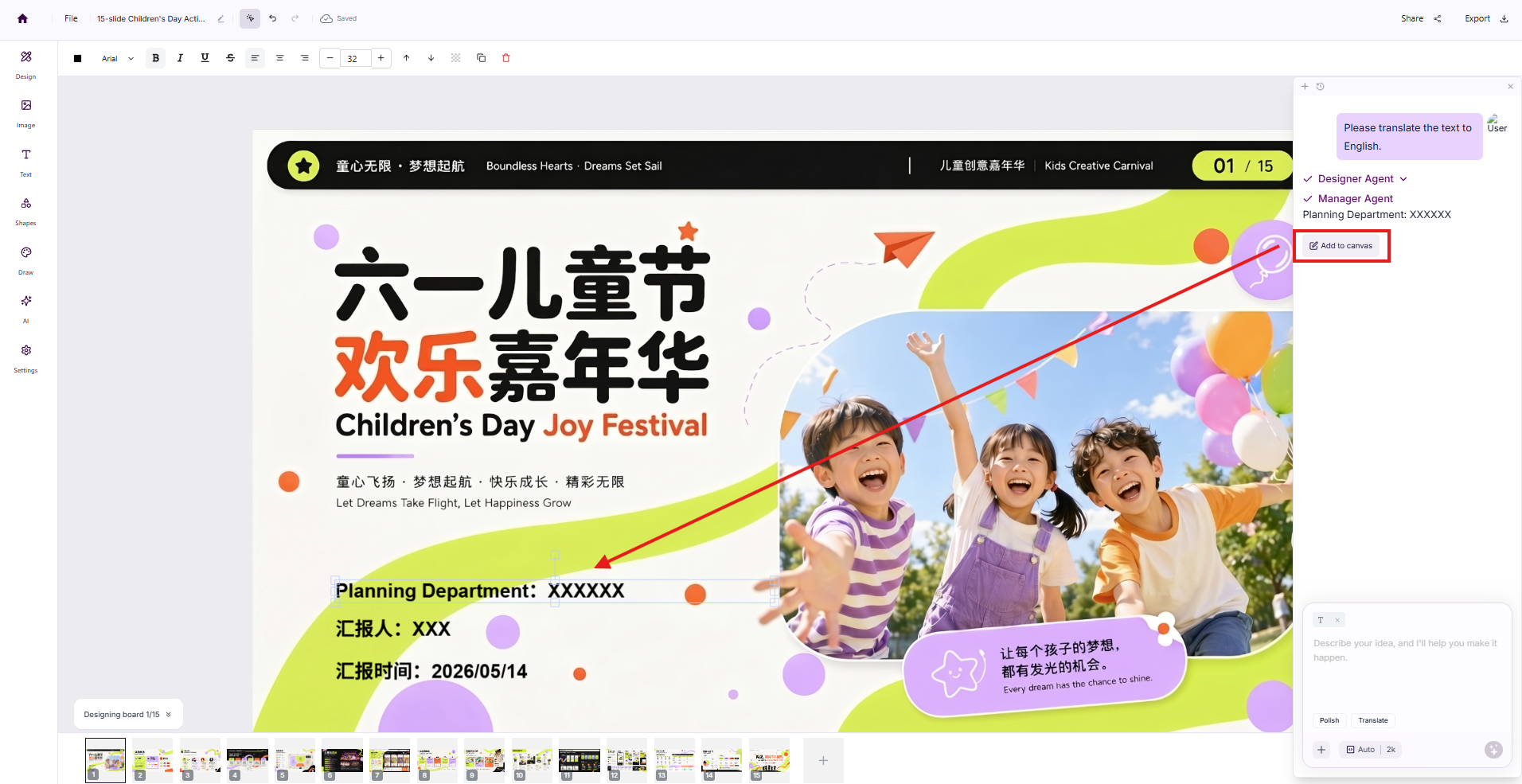
- Text Layers——Polish wording, translate content
- No Element Selected——Issue global layout commands (e.g., Enlarge all heading font sizes uniformly)
Practical Use Cases:
Replace a phone in an image: The AI identifies the phone area and swaps it for your desired new model automatically.
Text Translation: Select English text in the PPT, let the AI translate it into one click while keeping the original layout intact.
Standard Editing Toolbar
The left sidebar offers a complete set of manual editing features:
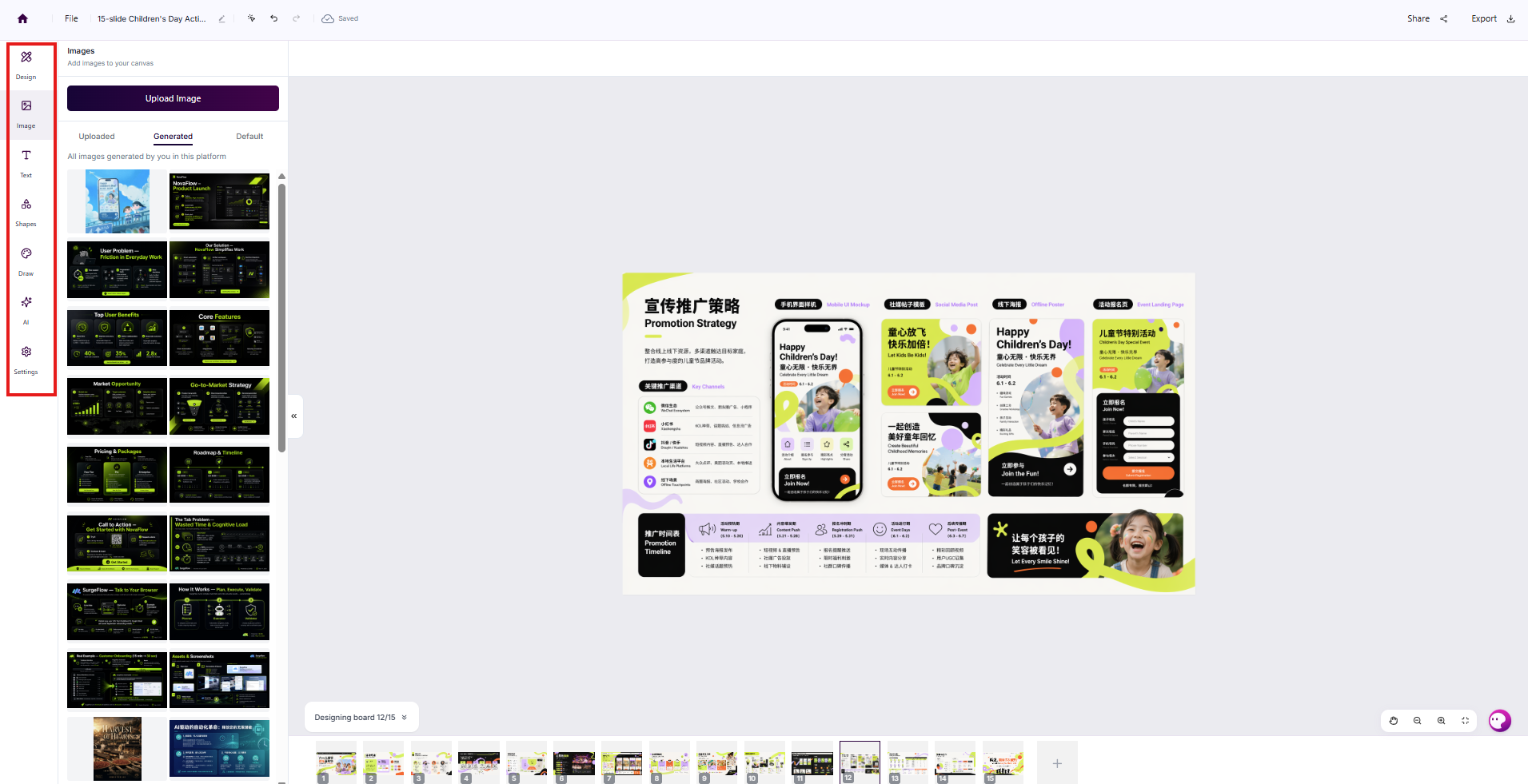
- Design: Insert and apply template pages
- Image: Upload local images or insert AI-generated visuals from chats
- Text: Add text boxes freely
- Shapes: Insert geometric design elements
- Diagrams (Coming Soon): Add data charts and infographics
- Draw: Use freehand brush tools
- AI: Generate standalone images instantly
- Settings: Adjust canvas size and background style
5. Export & Share Your PPT
Export
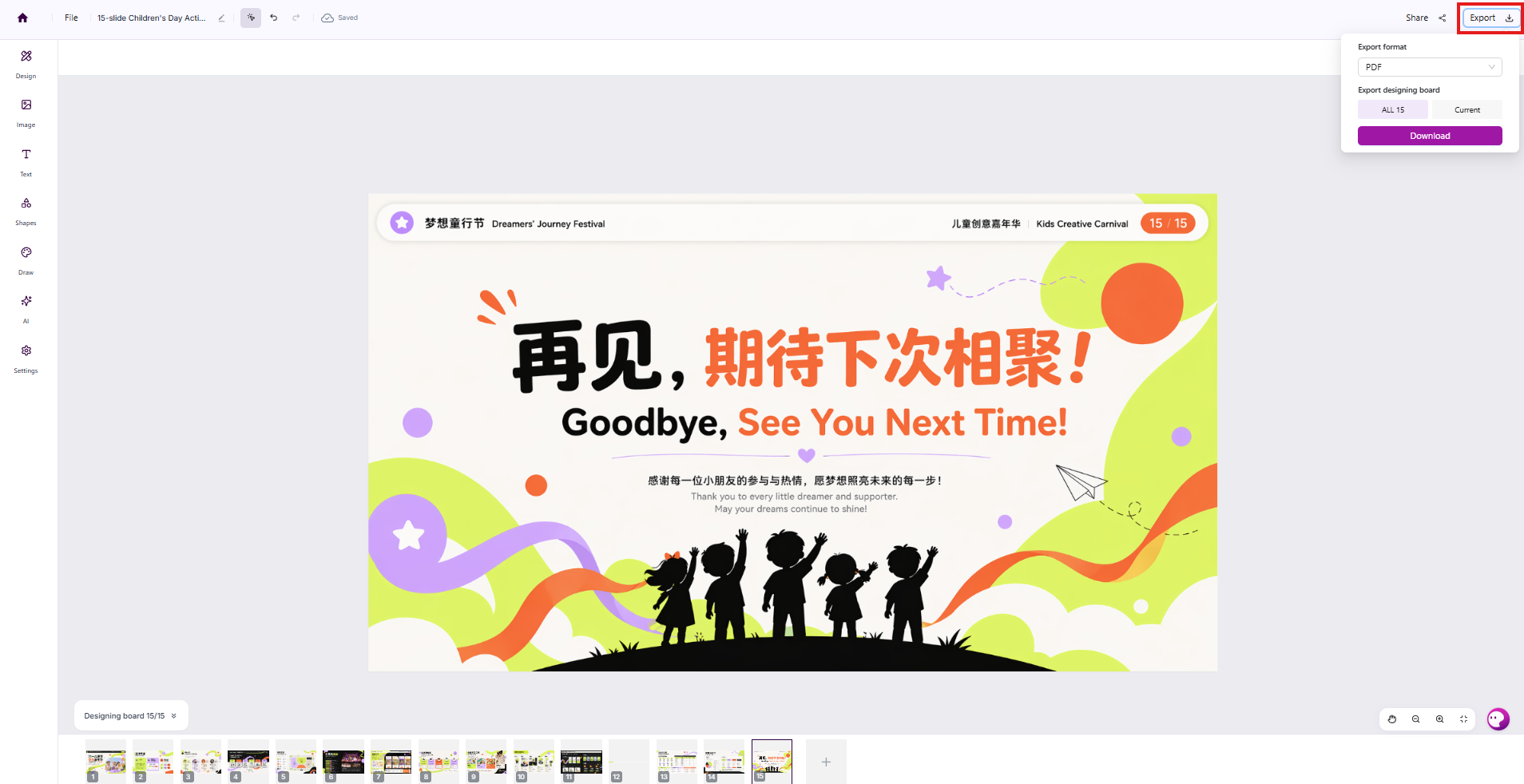
Click Export at the top right of the canvas, select your preferred format (PPTX / PDF and more) and page range, then save the file to your device.
Share
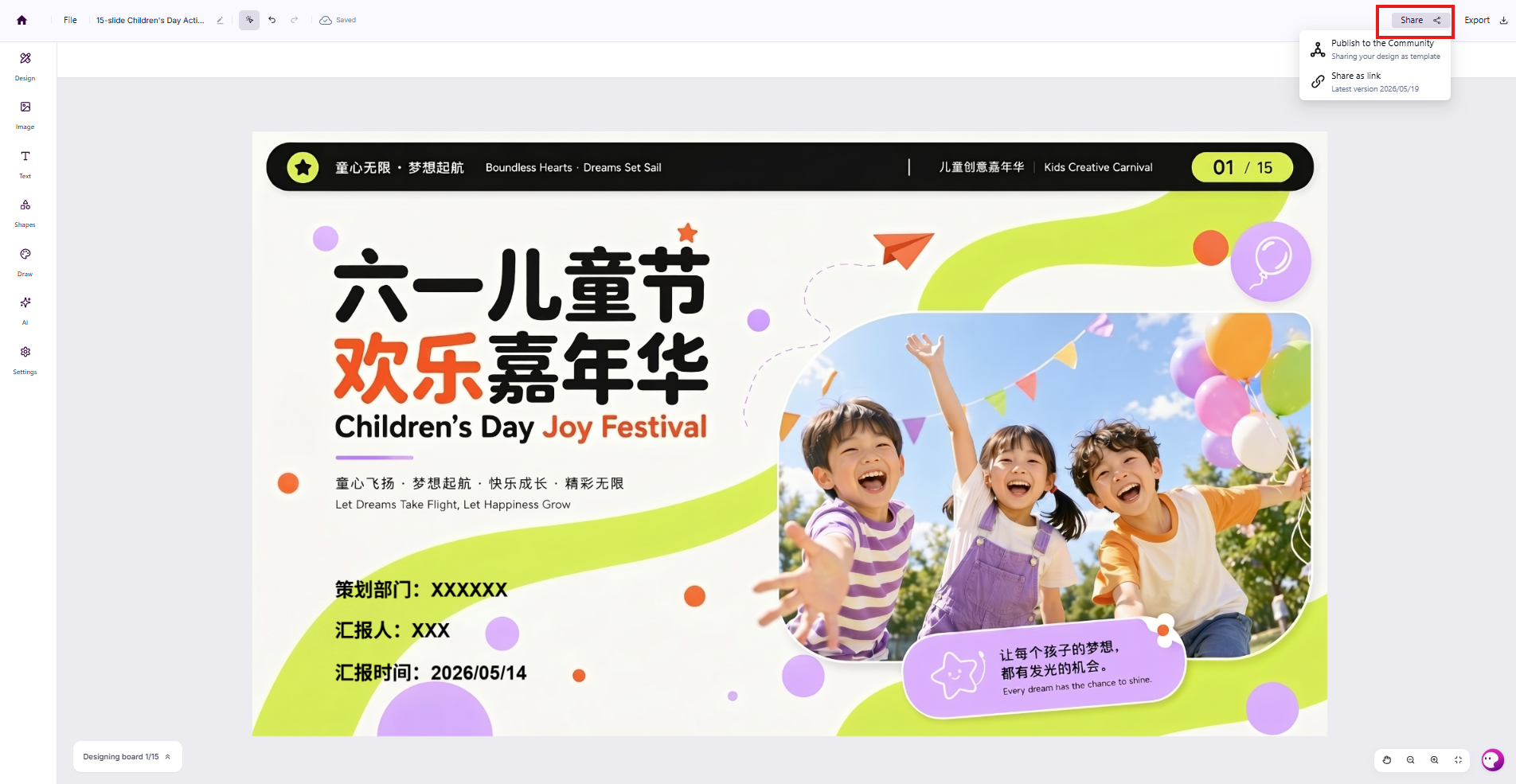
SurgePix offers two sharing options for different scenarios:
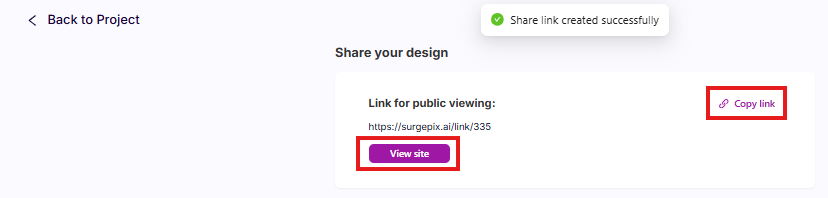
Generate a Share Link: Perfect for sending to colleagues or clients for online preview—no file download required. Go to Share → Share as link, copy the link, and recipients can view the full PPT instantly via browser.
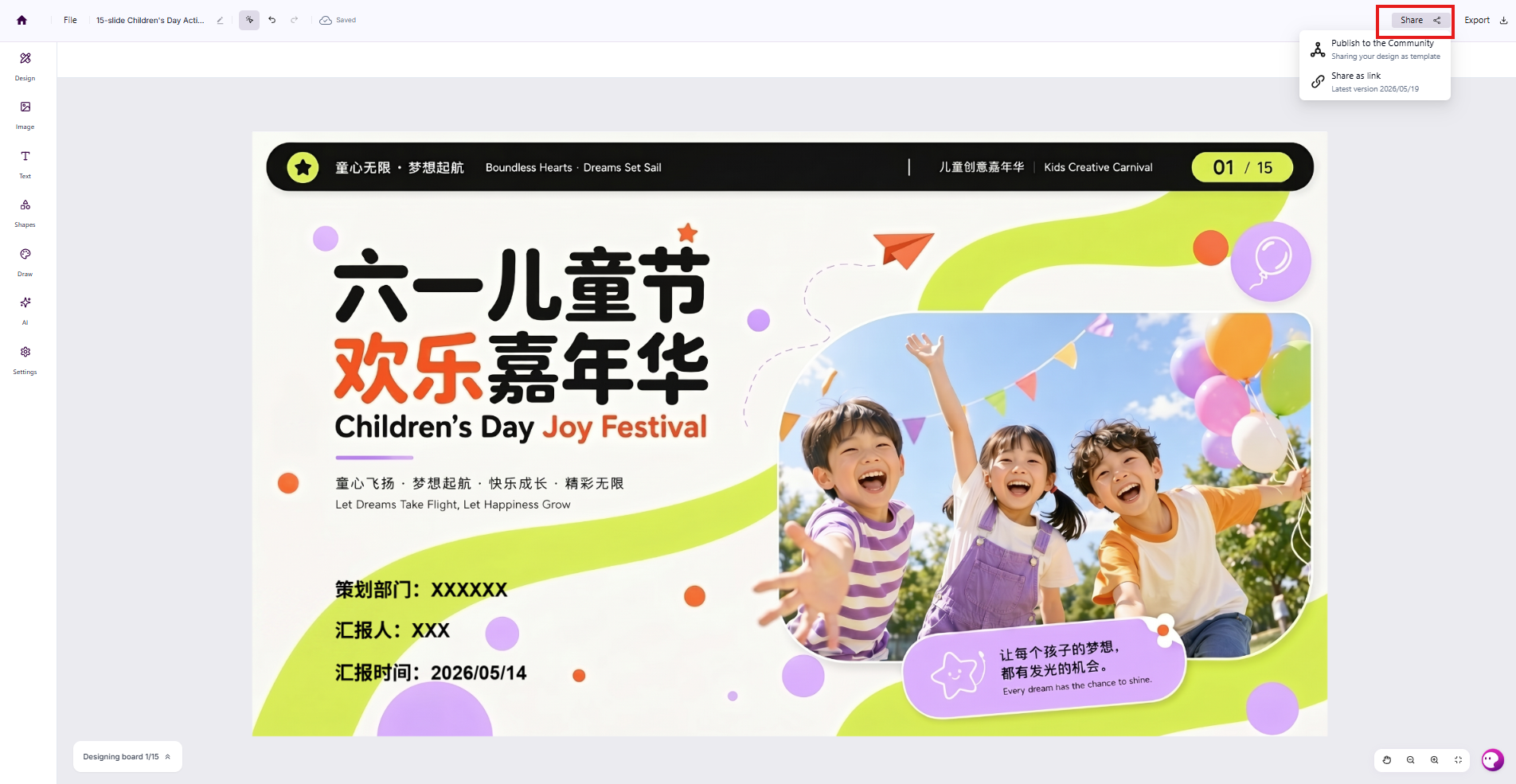
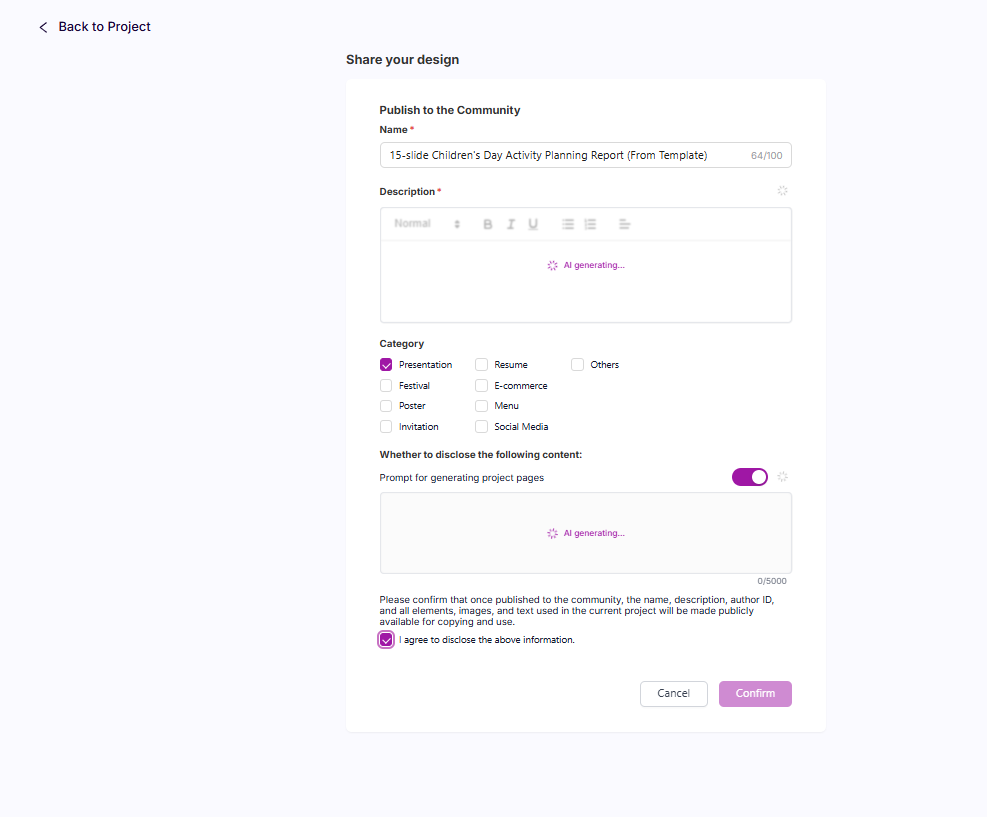
Publish to SurgePix Community: Showcase your works to fellow creators worldwide.
Go to Share → Publish to the Community to submit your PPT. Reviews usually take within 24 hours. Approved submissions earn the creator 100 bonus credits.
6. Frequently Asked Questions
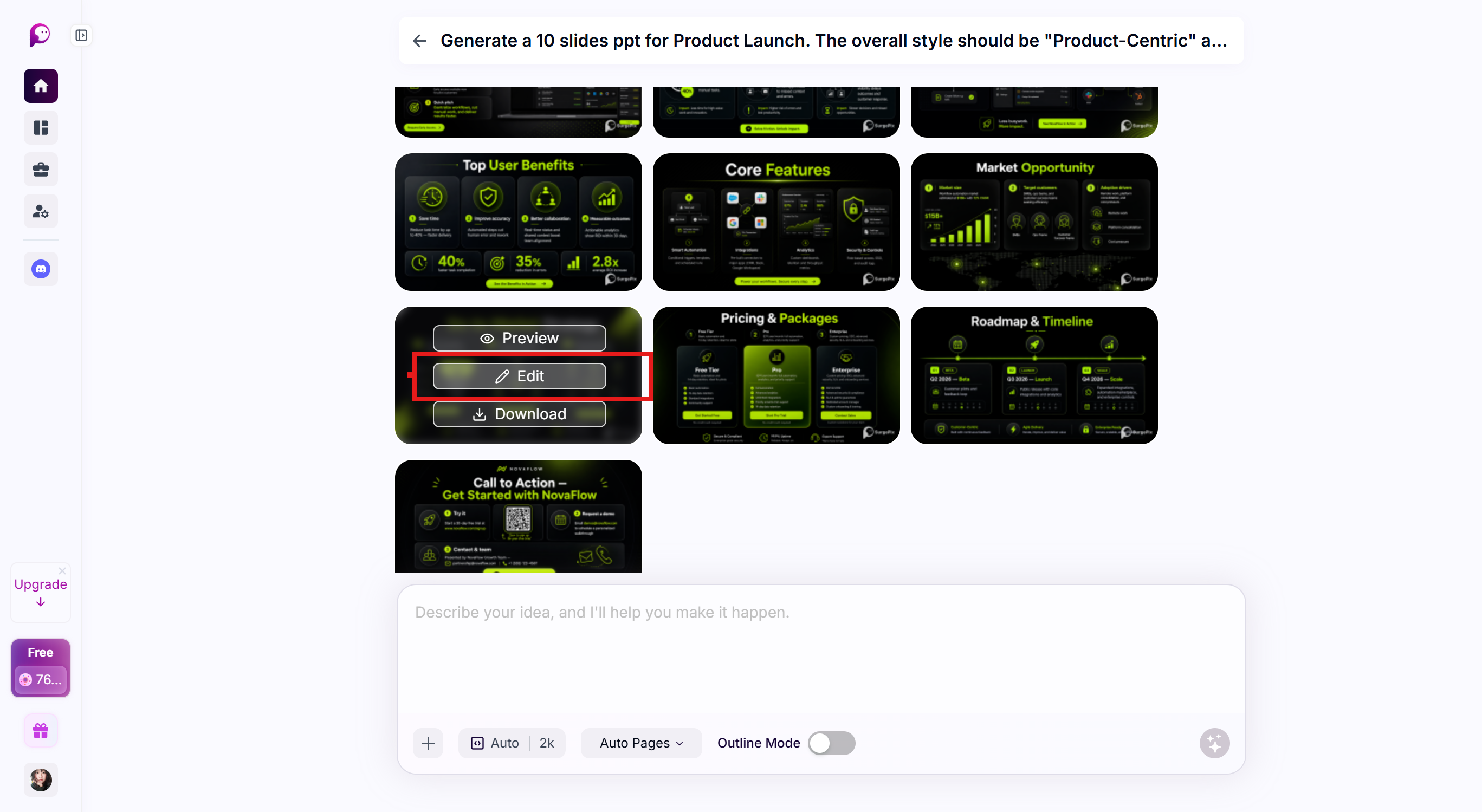
Q1: How do I edit a single image in the generated PPT?
Hover over any image and click the Edit button that pops up. This creates an independent editing project for the image, allowing you to refine it separately.
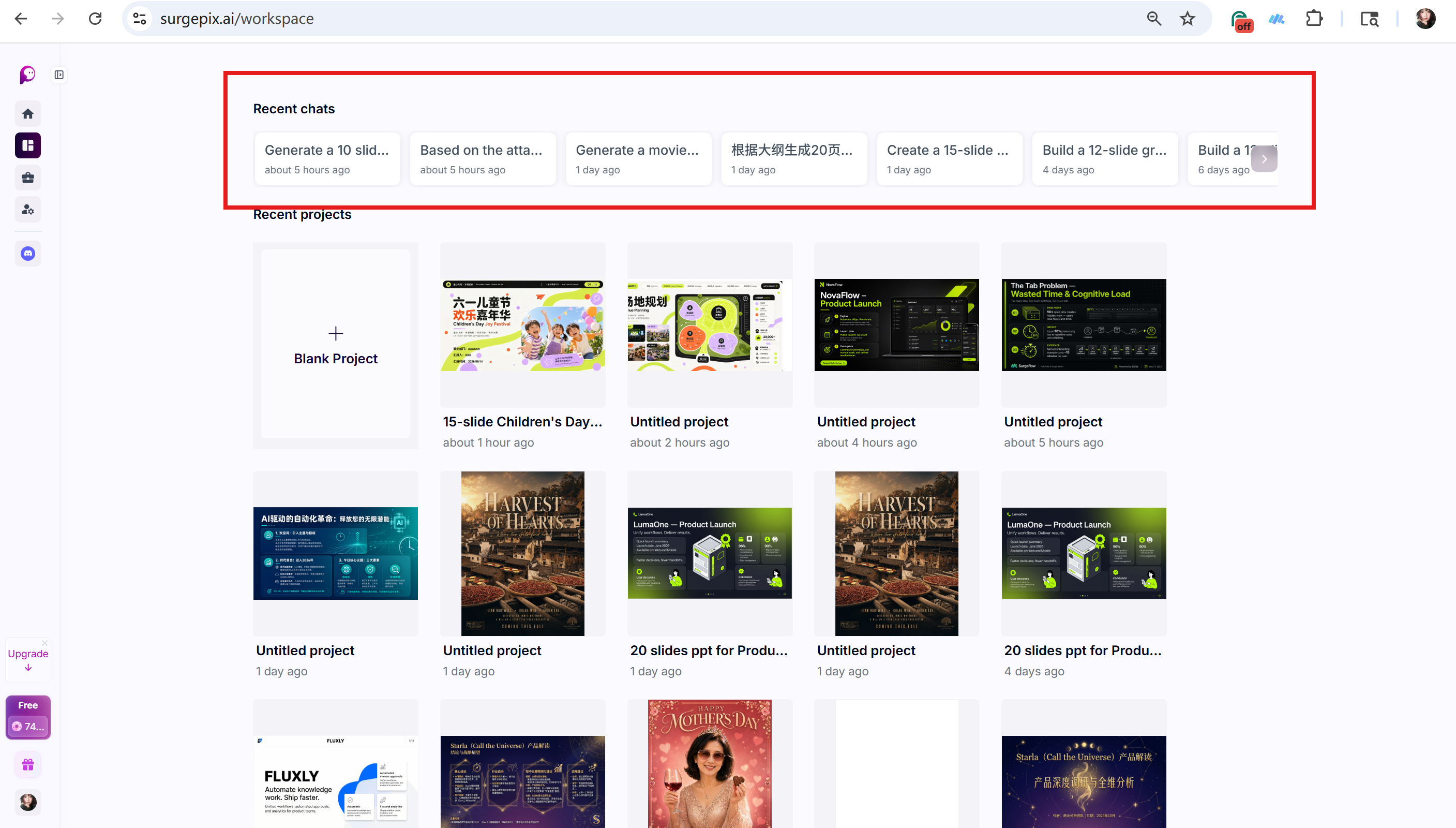
Q2: Where can I find my past generation records?
Go to Workspace. All your previous AI creation and PPT generation history is listed under Recent Chats—click any record to resume editing anytime.
That’s the complete SurgePix workflow: generate, edit, export, and share. Master these steps, and you’ll never need to build PPTs from scratch manually again. Focus only on your content ideas, and let AI handle all the layout and design work.
Give Surgepix a try.
Check out our Free PPT prompt library as well.
Join our Discord community ✨ — feel free to share any questions or feedback there!
You can also reach us at [email protected].