 SurgePix Docs
How to Remove an Image Background: The Complete Guide
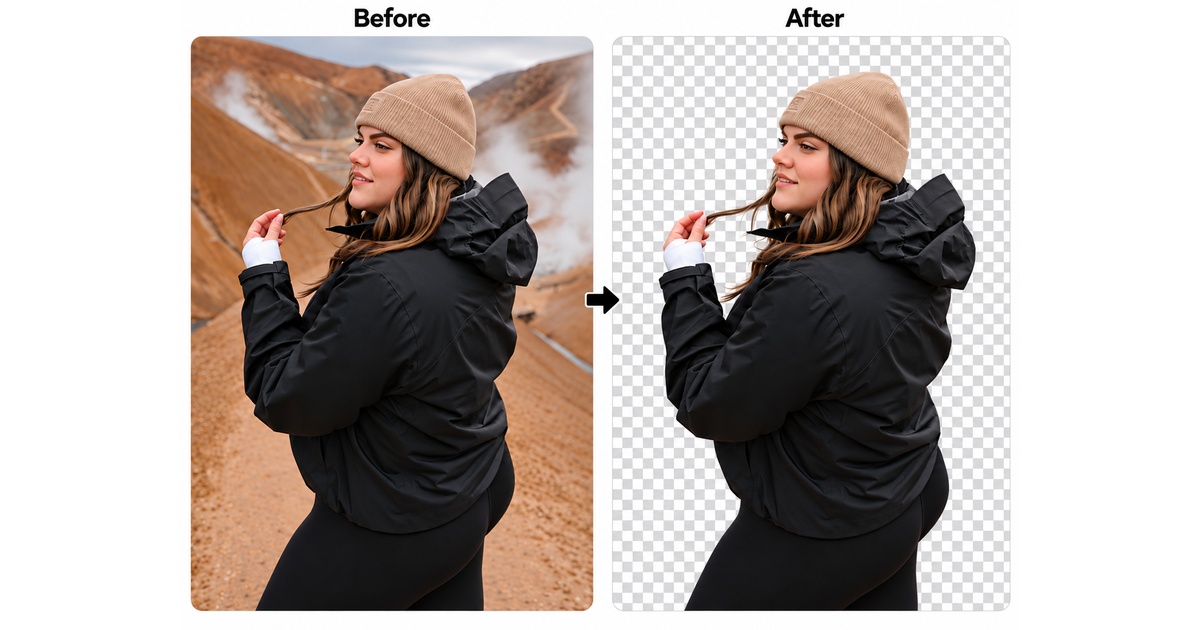
Removing the background from an image is one of those small tasks that shows up everywhere — a product shot for your store, a clean headshot for LinkedIn, a logo you need on a transparent background, a cut-out for a slide or a poster. This guide covers every way to do it, from doing it by hand to getting a clean cut-out in a single click, plus how to handle the parts that usually go wrong (hair, fine edges, and transparency).
If you just want the fastest path: you can remove a background in one click and download a transparent PNG — skip to The one-click method below.
What "removing a background" actually means
It means separating the subject (a person, a product, an object) from everything behind it, then either deleting the background to transparency or replacing it with a new color or scene. A good cut-out keeps crisp edges, preserves fine detail like hair, and exports with a real transparent layer — not a white box that only looks removed.
The three ways to remove a background
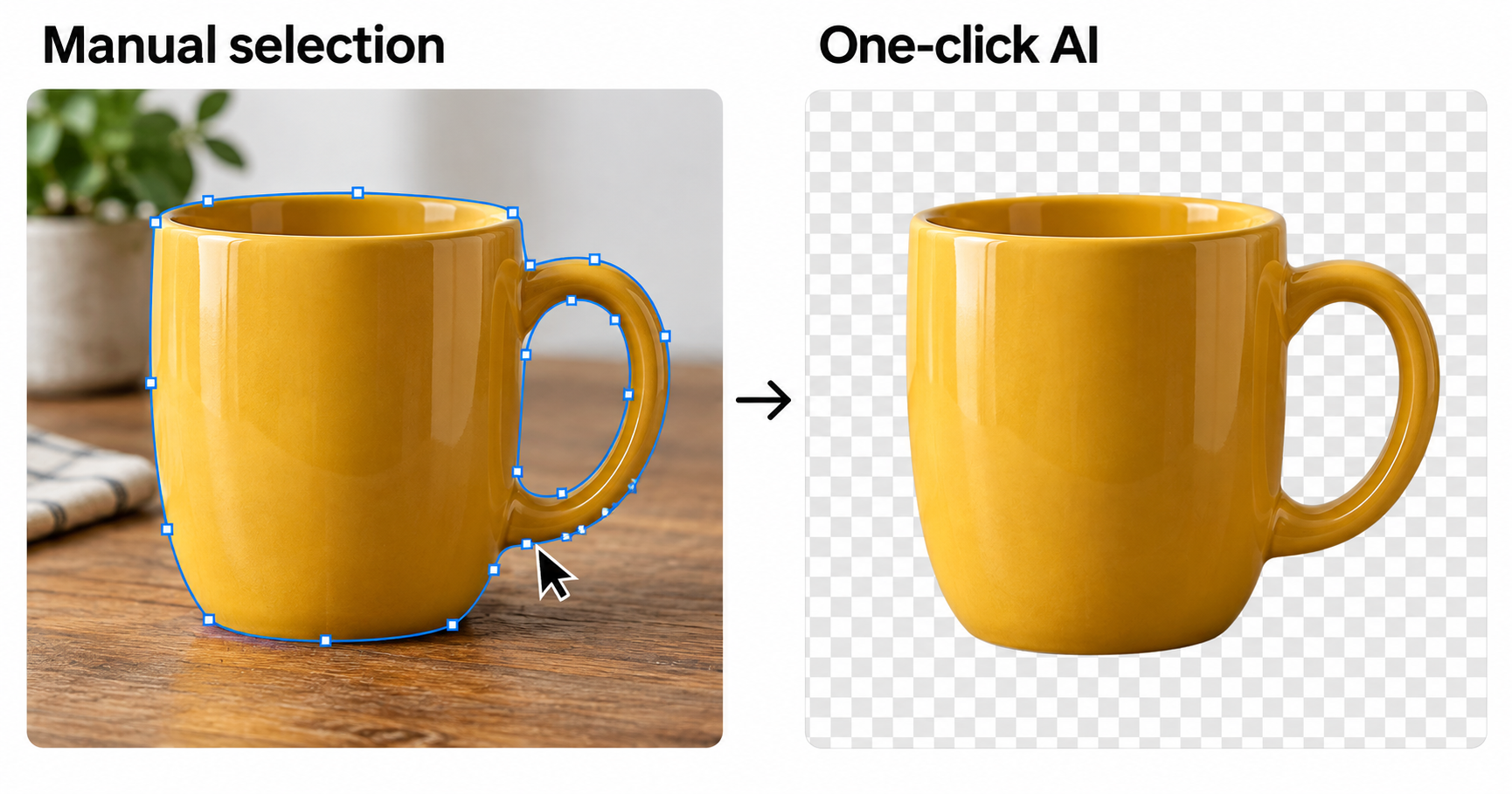
1. By hand (Photoshop / GIMP)
You trace the subject with the pen or lasso tool, refine the selection, then mask out the background.
- Best for: total control on a single, high-stakes image.
- Downside: slow, a real learning curve, and hair/fur is painful to do well.
2. Semi-automatic selection tools
Most editors now have a "Select Subject" or "Magic" button that guesses the subject for you, then lets you clean up the edges.
- Best for: occasional edits when you already have the software open.
- Downside: quality drops on busy backgrounds and soft edges; still manual cleanup.
3. The one-click AI method
An AI model detects the subject and removes everything else automatically, keeping edges and hair intact, and exports a transparent PNG.
- Best for: speed, batches, and anyone who doesn't want to open an editor.
- Downside: you want a tool that handles hair and fine detail — not all do.
The one-click AI method (step by step)
This is the fastest route and the one most people want:
- Open the one-click background remover.
- Upload your photo (JPG or PNG).
- The AI detects the subject and removes the background automatically.
- Download the result as a transparent PNG, ready to drop onto any color or scene.
Because it runs as an agent skill too, you can also remove backgrounds straight from Claude Code, Cursor, or any SKILL.md agent — useful when you're processing a whole folder of images in a workflow rather than one at a time.
Getting clean edges on the hard cases
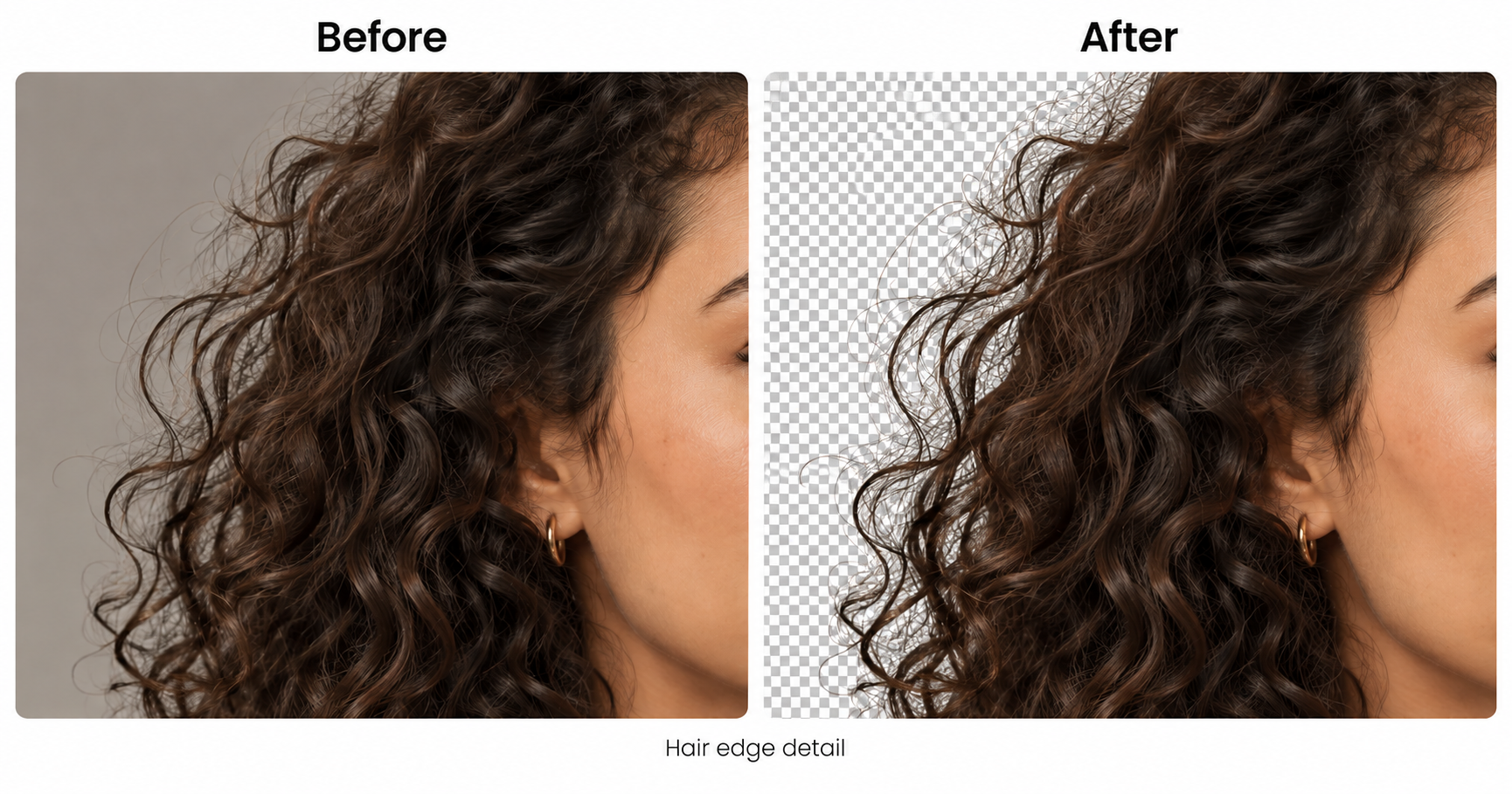
Hair and fur. This is where cheap tools leave a white "halo." You want a remover trained to keep soft strands — see removing a background from hair without a halo for the detail.
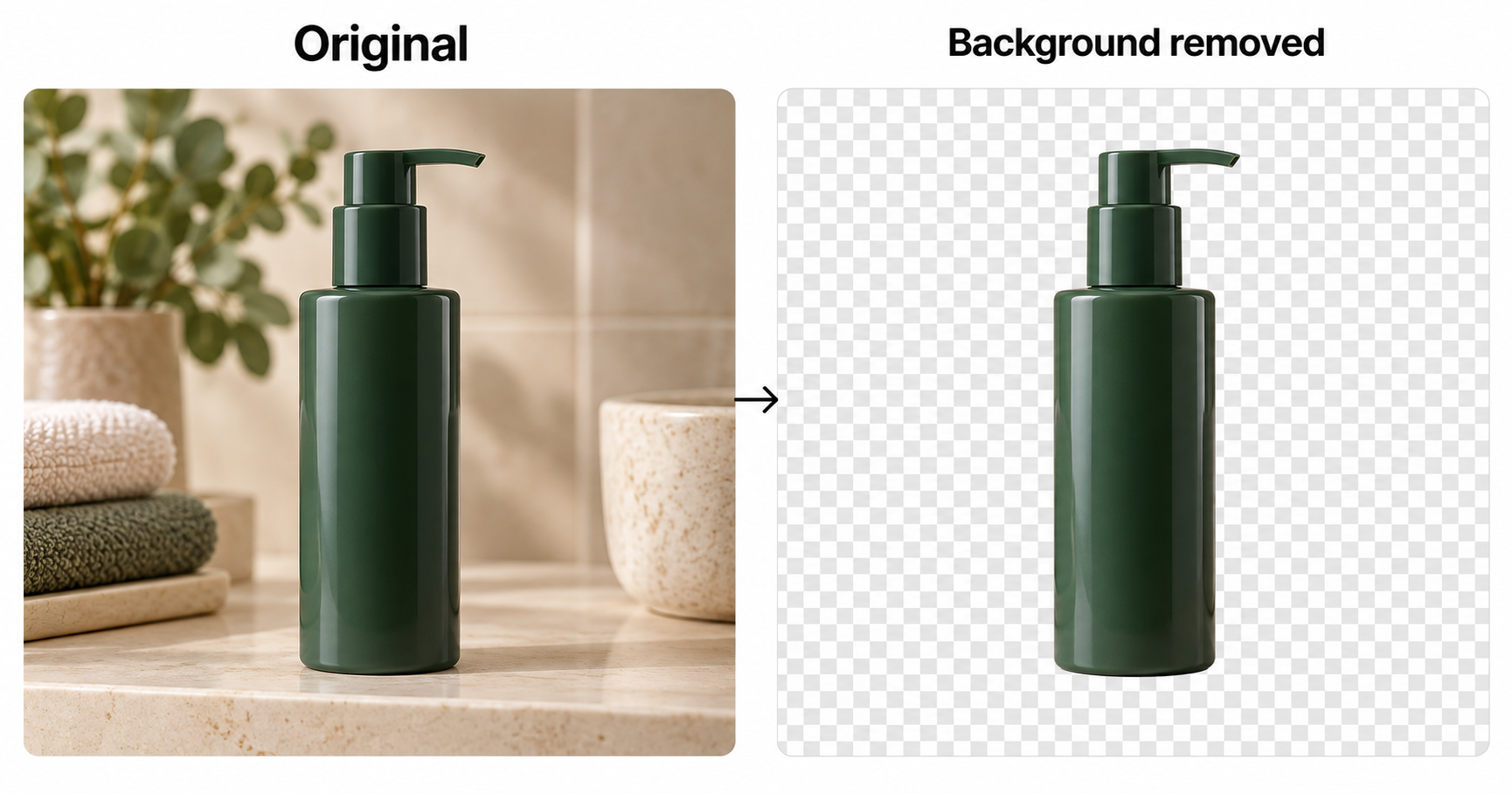
Product photos. For e-commerce you need consistent, pure cut-outs so every product sits on the same clean background. AI one-click is ideal here because it's repeatable across a catalog.
Semi-transparent objects (glass, veils, smoke) are the genuinely hard case for any method — expect to touch these up by hand.
Transparent PNG vs. a white background
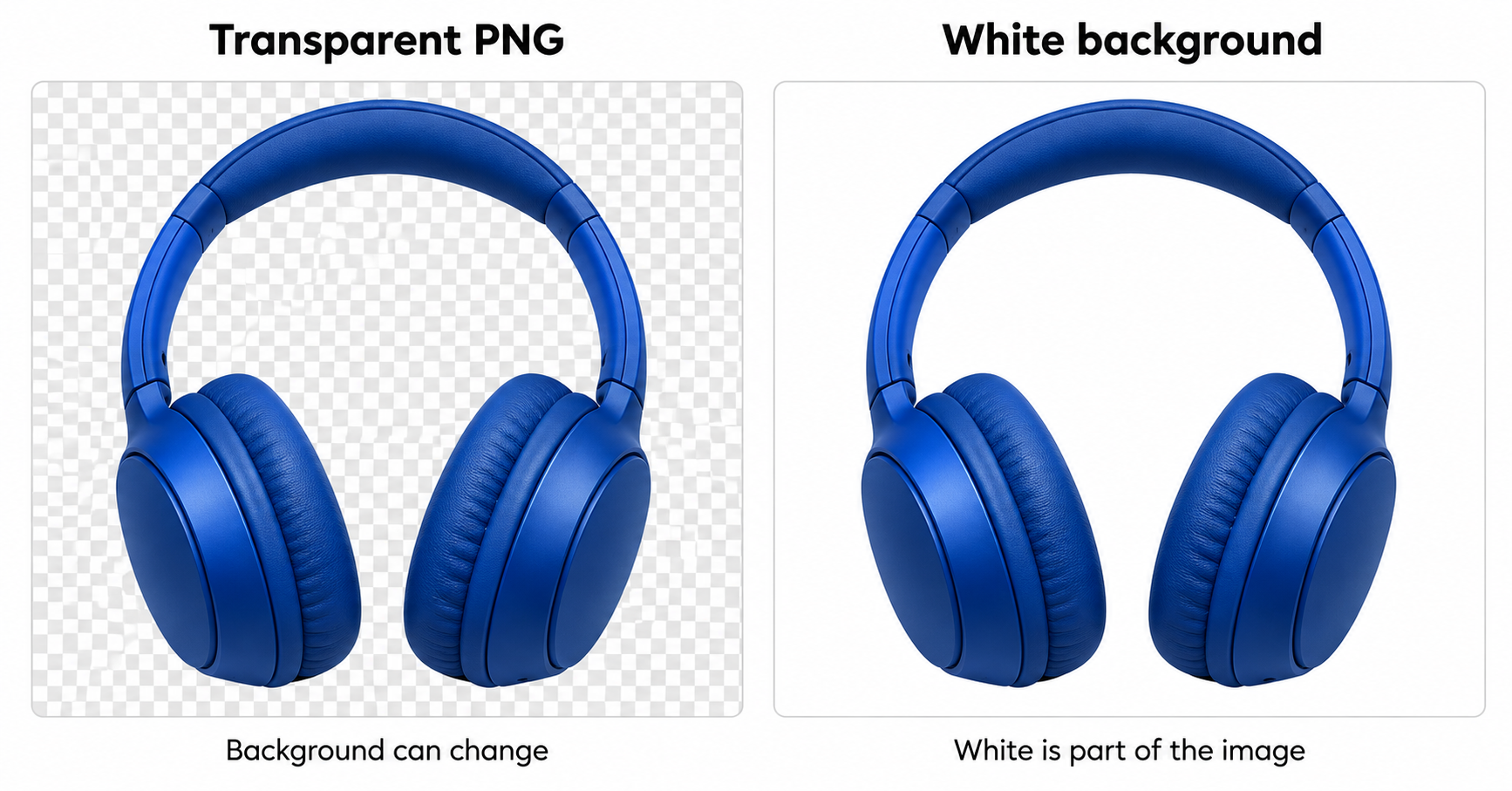
- Transparent PNG — the background is actually gone; you can place the subject on anything. This is what you want for logos, overlays, and design work.
- White/solid background — fine for marketplaces that require it (many e-commerce platforms do), but it's not "transparent."
If you need a true transparent layer, export as PNG, not JPG (JPG can't store transparency).
Common use cases
- E-commerce — clean product cut-outs on a uniform background.
- Profile pictures & headshots — cut out the portrait, drop in a brand color.
- Design & slides — isolate a subject for a poster, deck, or thumbnail.
- Marketing — reuse one subject across many backgrounds.
Use it from your agent (developers)
SurgePix ships the same background remover as an agent skill, so you can run it from Claude Code, Cursor, Codex, or any SKILL.md agent — ideal for batch jobs and automated pipelines rather than one upload at a time.
- Install:
npx skills add surgepix/agent-skills(or copy the folders into~/.claude/skills/). - Add your key: set
SURGEPIX_API_KEY(get one at surgepix.ai) andSURGEPIX_BASE_URL. - Just ask: "remove the background from photo.jpg" — your agent runs the
surgepix-remove-backgroundskill and returns a transparent PNG.
The skill uses the same account and daily credits as the web app.
Ready to try it? Remove your image background in one click →
FAQ
Is removing a background free?
Yes. Log in and you get 25 free credits a day — enough to try it out. Each background removal draws from that daily allowance, which refreshes every day.
Do free downloads have a watermark?
A quick export carries a small watermark. To download watermark-free on the free plan, create a project and export it from there.
What if I need more than the daily free credits?
Paid plans are a low-cost subscription (no one-time top-ups) — see current pricing.
What file format should I use?
Export as PNG for a real transparent background. Use JPG only if you're replacing the background with a solid color.
Will it keep hair and fine edges?
A good AI remover will. Avoid tools that leave a white outline around hair.
Can I remove backgrounds in bulk?
Yes — as an agent skill it can run over many images in a workflow, not just one upload at a time.