 SurgePix Docs
How to Edit Just Part of an AI Image (Inpainting), Without Re-Rolling
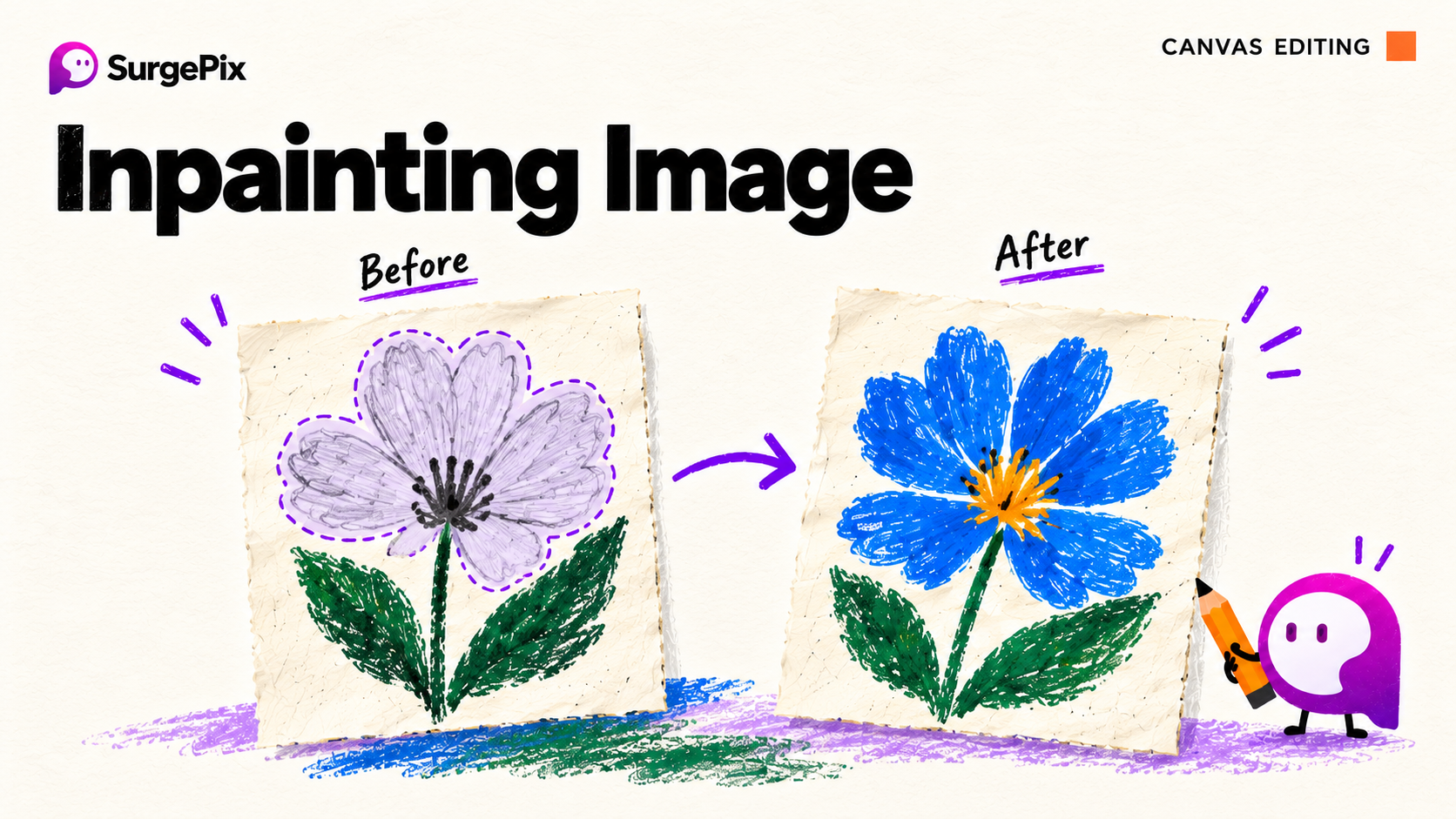
You generate an almost-perfect AI image — but the model's shirt is the wrong color, there's a weird extra hand, or one word in the sign is misspelled. With most AI tools, your only option is to re-generate the whole image and hope the next roll fixes that one thing without breaking everything else.
It usually doesn't.
Inpainting solves this. Instead of re-rolling, you edit just the part you want to change — and leave the rest untouched. Here's what it is and how to do it in SurgePix.
What is inpainting?
Inpainting is editing a specific region inside an image while keeping everything around it exactly the same. You mark the area you want to change, describe the change, and the AI redraws only that region — blending it with the surrounding pixels so the result looks like one coherent image.
It's the difference between "make me a new image" and "change this one thing."
How to inpaint an image in SurgePix
SurgePix does inpainting with a brush + a text description — no need to split the image into layers or blocks first.
- Open your image on the canvas (one you generated, or one you uploaded).
- Grab the inpaint brush and paint over the area you want to change — a jacket, the sky, an object, a face, a line of text.
- Describe the change in plain language: "make the jacket deep red," "remove this object," "change the text to SALE."
- Generate. SurgePix redraws only the painted region and blends it into the rest of the image.
- Keep editing. The result stays an editable layer — refine it, paint another area, or move on.
What you can do with it
- Recolor one element — e.g. change a person's shirt without touching their face or background.
- Remove or replace an object — delete a distraction, swap a prop.
- Fix AI mistakes — an extra finger, a warped logo, a garbled bit of text.
- Restyle a region — change a texture, a material, or lighting in just one spot.
- Iterate on details — nudge one part at a time until the whole image is right.
Why this beats re-rolling
- You keep the 95% that was already perfect. Re-generating throws away a good image to fix a small flaw. Inpainting keeps it.
- It's faster and cheaper. One targeted edit instead of roll after roll.
- It's predictable. You change exactly what you painted — not the whole composition.
Many AI tools can only regenerate a whole image, or only let you swap an entire image block. SurgePix lets you paint over a region inside an unsplit image — like just the person's top — and change only that. (For a broader editing comparison, see SurgePix vs Gamma.)
It stays editable afterward
Inpainting in SurgePix isn't a one-way flatten. The edited image remains a layer on your canvas, so you can keep refining, combine it with other edits — remove the background, crop, add text, @mention it to the design agent — and export when it's done (PNG / SVG / PPTX). Generation was step one; this is the editing that comes after.
Tips for better inpainting results
- Paint a little wider than the object so the AI has room to blend edges cleanly.
- Be specific in the description — "deep burgundy wool coat" beats "red."
- Change one thing per pass. Stacking small, targeted edits is more controllable than one big prompt.
- Match the lighting — mention the light direction or mood if the region looks pasted-in.
- Zoom in for fine fixes like text or hands.
→ Try inpainting in SurgePix free — paint a region, describe the change, keep the rest.
FAQ
What is inpainting in AI?
Editing a specific region inside an image — you mark an area, describe the change, and the AI redraws only that part while keeping the rest identical.
Can I edit just part of an AI-generated image?
Yes. With inpainting, you change only the region you paint over; the rest of the image stays exactly as it was.
Do I have to re-generate the whole image to fix one thing?
No — that's the whole point of inpainting. You fix the one area and keep everything else.
Can I inpaint an image I didn't generate in SurgePix?
Yes — upload an image and brush-edit any region of it.
Is the result still editable?
Yes — it stays an editable layer, so you can keep refining, combine edits, and export to PNG / SVG / PPTX.