SurgePix Docs
Open SurgePix
IntroductionDeveloper guidesUse casesWhat’s newResourcesLegal
Getting started
Welcome to SurgePixCreate → Refine → EditEditor Canvas——Edit in Surgepix
Create with Chat
Start from a TypeStart from a TemplateAdd AttachmentsMentionAI Real-time Web Search
Edit Your Work
Extract Text from ImagesEditing with the AI AssistantRepaint Part of an ImageBasic Editing
Export & Share Your Work
Export & DownloadShare as a LinkPublish to the Community
Credit & Subscription
Plans & PricingHow Credits WorkGet Featured RewardsInvite Friends
Surgepix Home
Home overviewCreate from Templates
Surgepix Workspace
Recent chatsRecent projectsChat vs Project (Important Distinction)
Surgepix Tools
Tools overviewPDF to Image Converter: Transform Documents into Stunning VisualsImage Resizer: Perfectly Size Your Images for Every Platform
Loading documentation...

© 2026 SurgePix. All rights reserved.

GitHubSurgePixsurgepix_AI[email protected]
Edit Your Work

Editing with the AI Assistant

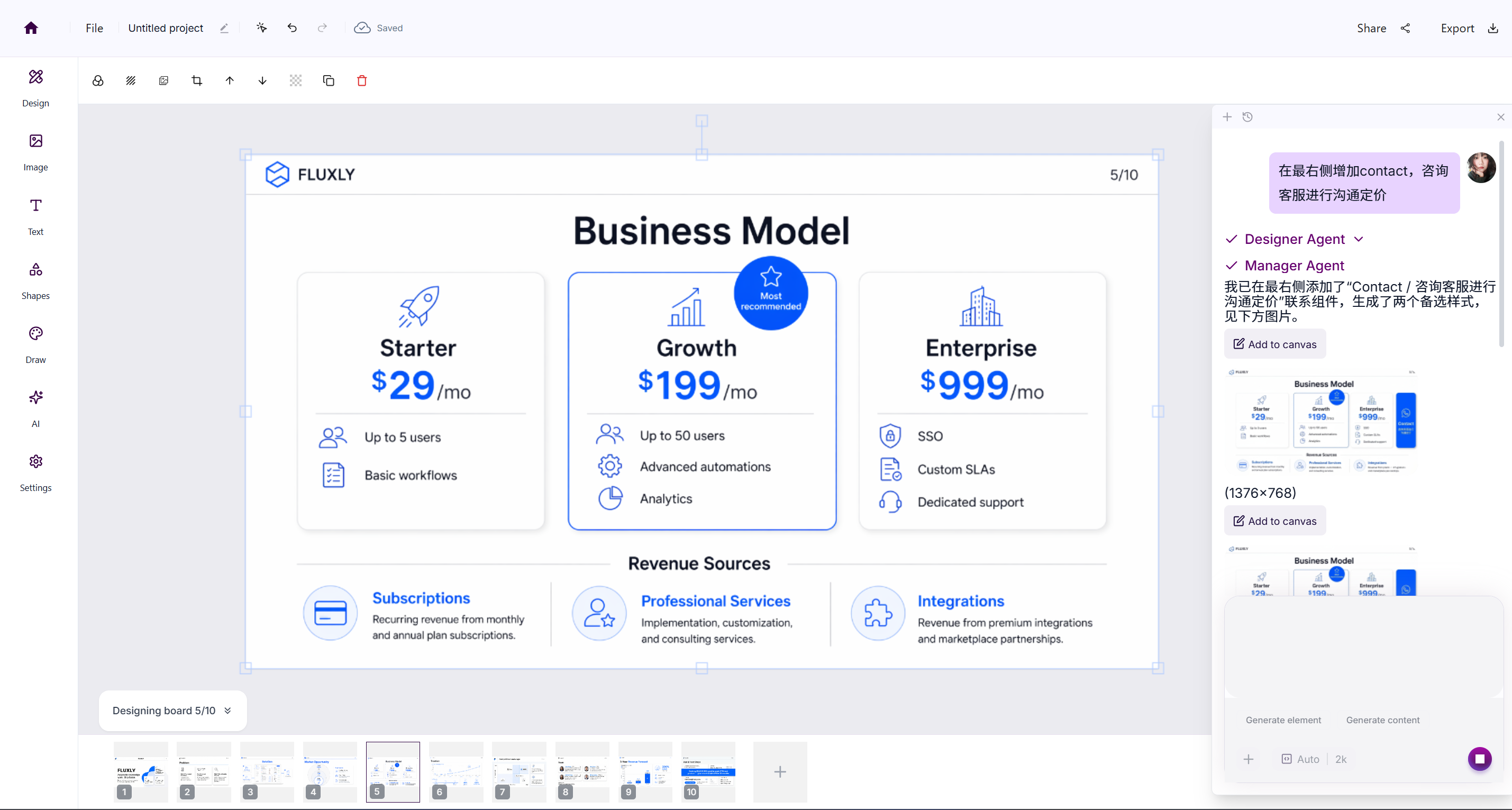
Inside a Project, the AI assistant lets you edit any element on a slide with plain-language commands—no manual tools required.


How it works

  1. Open a Project to enter the canvas.
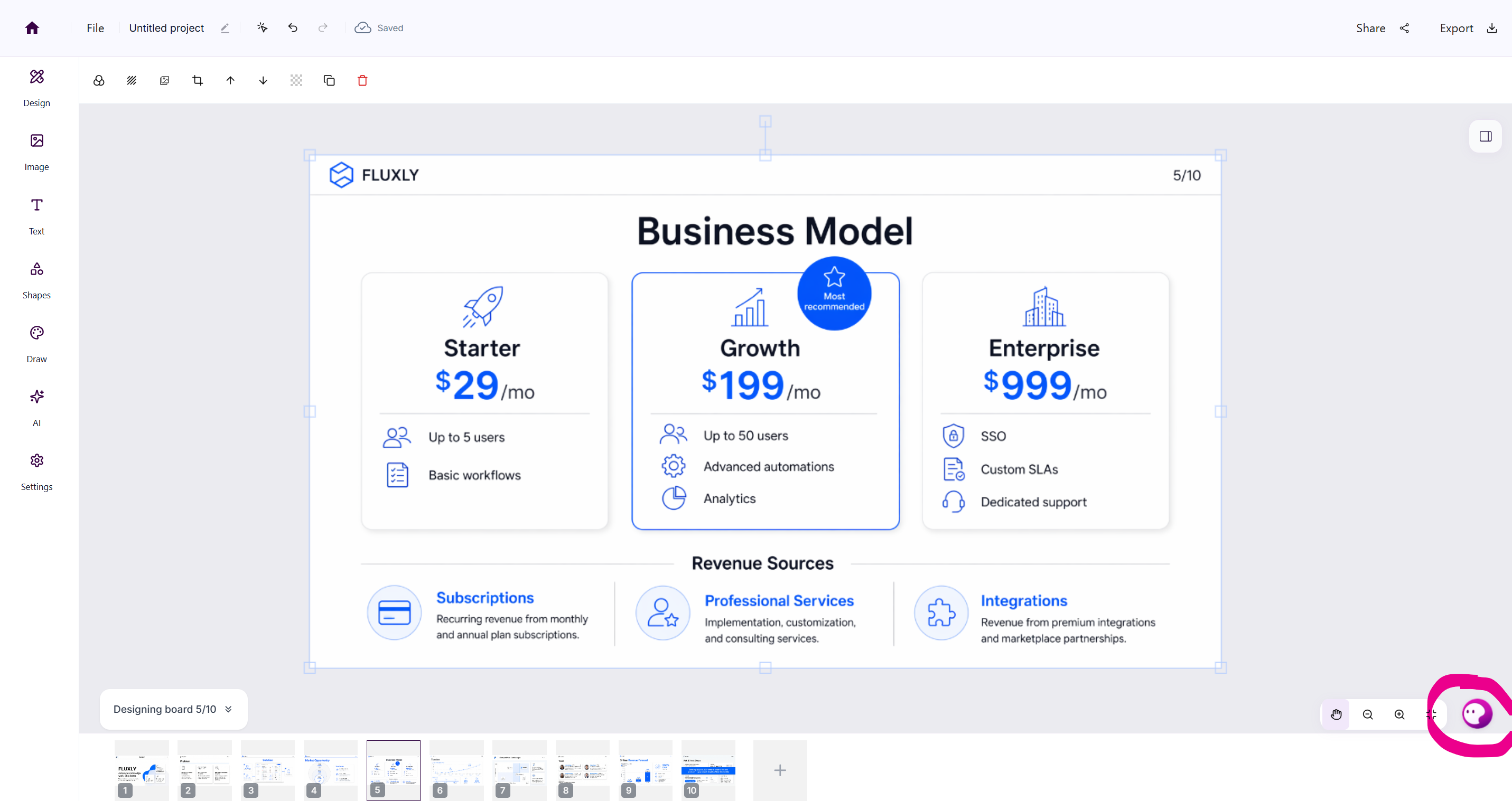
  2. Click the AI assistant button in the bottom-right corner.
  3. Choose a slide, then select any element on the page.
  4. Type your instruction in natural language and let the assistant make the change.
ai-assistant ai-assistant-done


Quick reference

Selected

Common commands

Image / shape layer

Replace subject, generate image, remove background

Text layer

Polish text, translate text

Nothing selected

Edit the whole project (e.g., "increase all heading sizes")

Examples

Replace an image

Ask the assistant to replace the phone in an image. It detects the phone area and swaps in the model you specify.
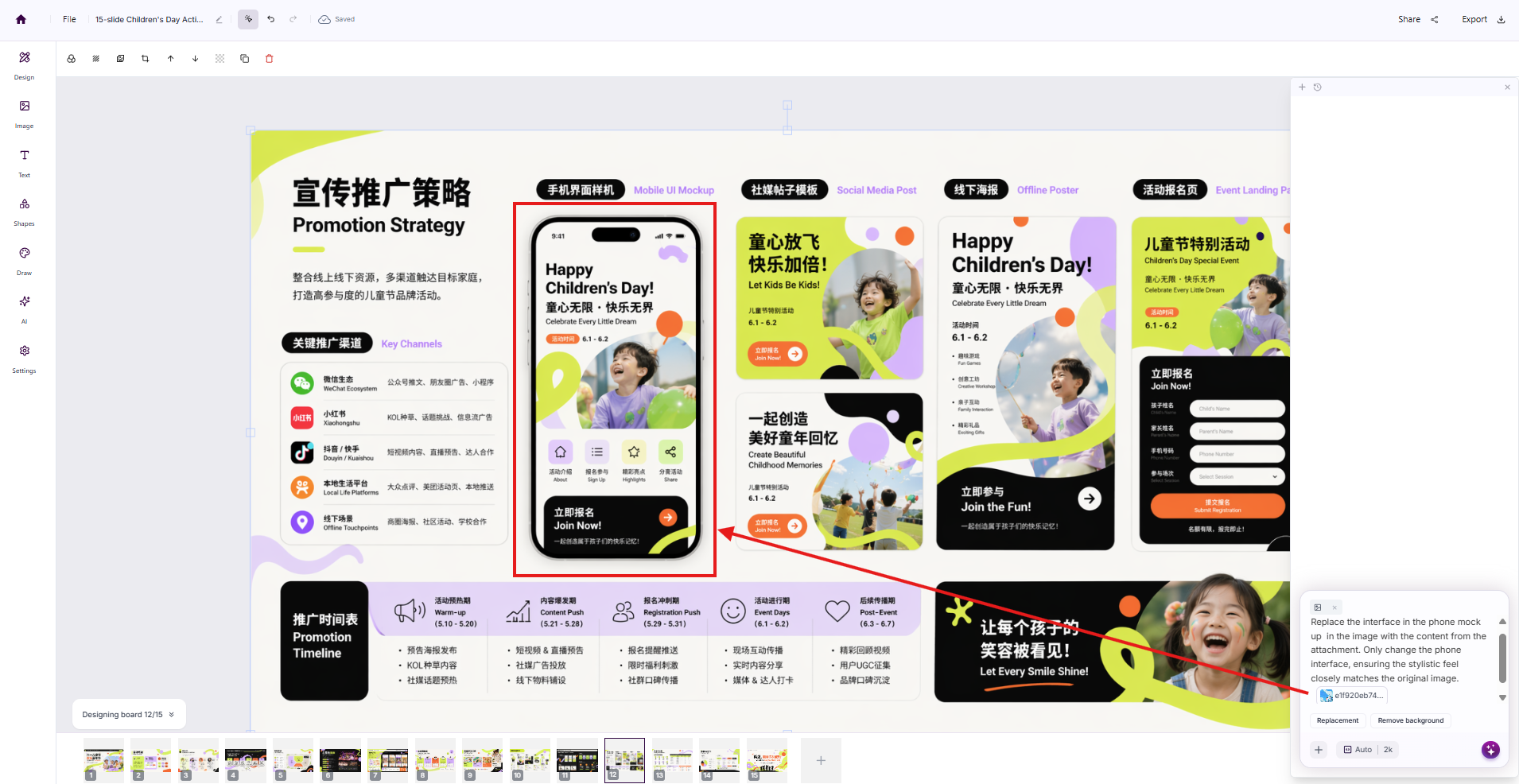
image-replace


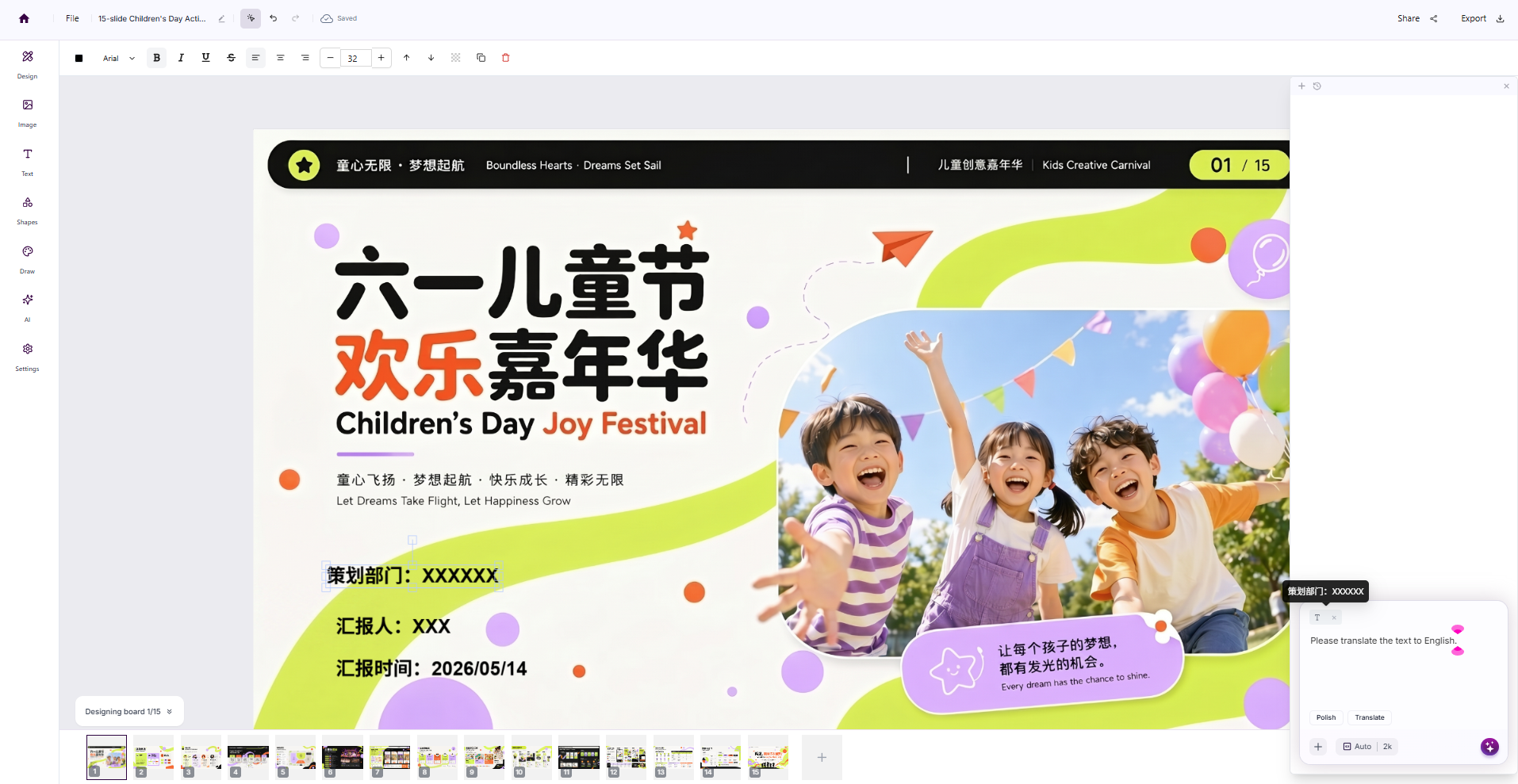
Translate text

Select the English text in a slide and have the assistant translate it to Chinese—the layout stays the same.
copilot-text-translate


On this page

How it worksQuick referenceExamples