 SurgePix Docs
Editor Canvas——Edit in Surgepix
The Editor Canva is the core design workspace in Surgepix where generated outputs are transformed into fully customizable, production-ready visuals.
It allows you to refine, structure, and enhance AI-generated content using a powerful visual canvas.
You can enter the editor by clicking Edit/Edit as project on any generated result in a chat session.
What is the Editor?
The editor is a multi-page design canvas that combines:
- AI-generated content structure
- Manual visual editing tools
- Layout and typography controls
- Multi-page project management
It bridges the gap between AI generation and final design production.
Entering the Editor
You can access the editor in two ways:
From Chat (Recommended)
In any chat—a recent chat, or a new chat you start from the home page—you can open a generated result on the canvas two ways:
- Edit a single image. Hover over any generated image and click Edit. That image opens on the canvas as its own Project.
- Edit the whole output. At the end of the output, click Edit as project. The entire result—which may be several images or pages—opens as one Project.
This converts your result into a fully editable project.
From Project
Open your workspace and go to Recent projects:
- Blank Project — start a new, empty project from scratch.
- Or click any past project to reopen it and keep editing.
Editor Layout Overview
The editor workspace is composed of four main areas:
1. Main Canvas
The central area where your design is displayed and edited.
You can:
- Move and resize elements
- Edit text and images
- Adjust layout structure
- Preview design changes in real time
2. Left Toolbar
A vertical tool panel for creating and editing elements.
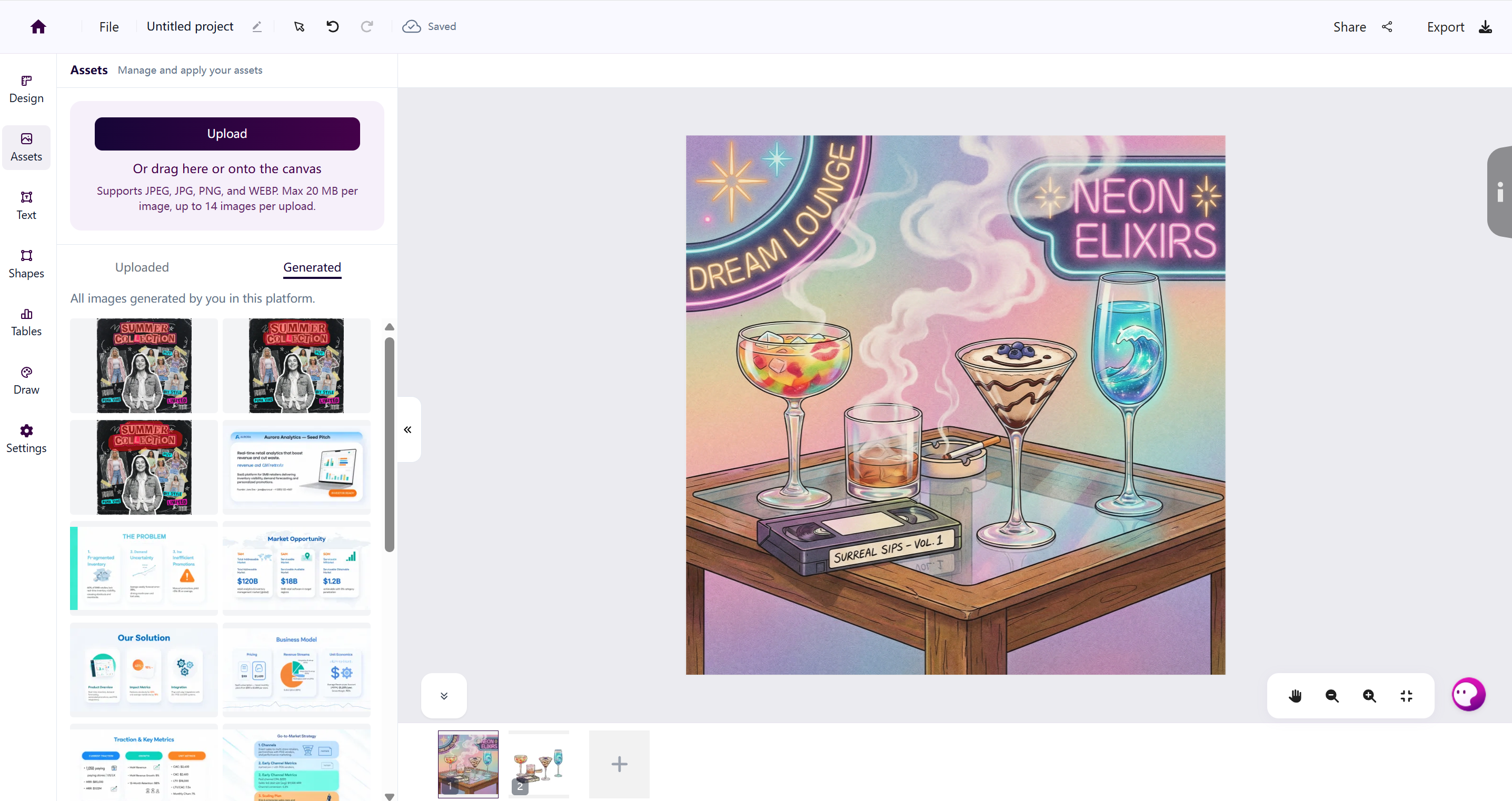
Includes:
- Design — Browse a library of community templates and insert one to start from.
- Assets — Upload your own images, or reuse images you've generated on SurgePix. Drag files onto the canvas, or use the Upload button. Supports JPEG, JPG, PNG, and WEBP, up to 20 MB per image and 14 images per upload. The Uploaded and Generated tabs switch between your uploads and images you've created on the platform.
- Text — Insert and style text.
- Shapes — Insert shape elements.
- Tables — Generate a chart from a data table. Choose Bar chart or Pie chart, fill in the Category / Value / Color rows (use Add Row or Clear All), then toggle Axis Labels, Gridlines, and Data Labels as needed.
- Draw — Free-hand drawing.
- Settings — Adjust canvas size and background.
3. Bottom Page Timeline
A multi-page navigation strip that represents your project structure.
You can:
- Switch between pages
- Reorder pages
- Add or duplicate pages
- Preview full flow of slides or designs
This is especially useful for PPT-style or multi-page designs.
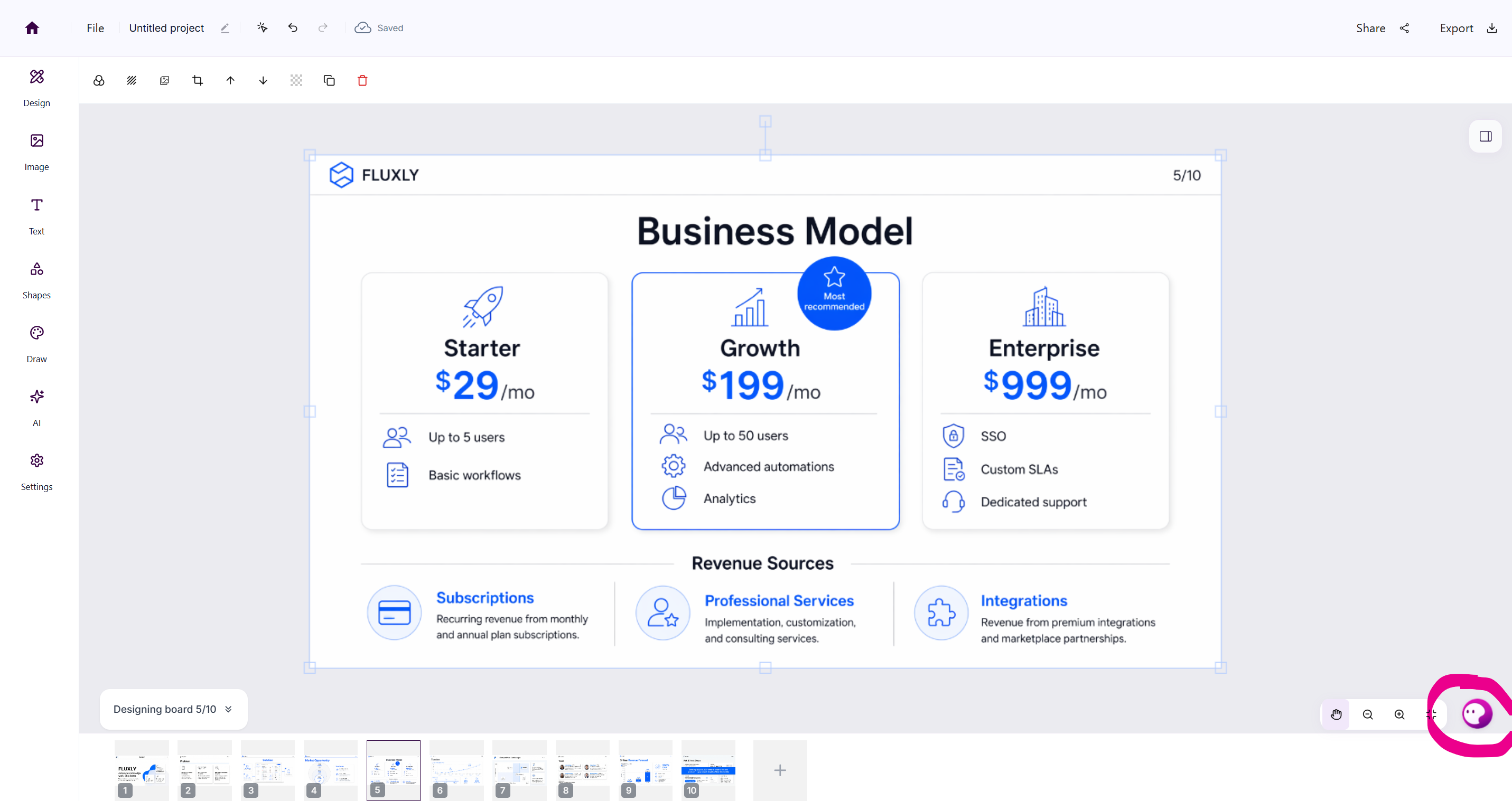
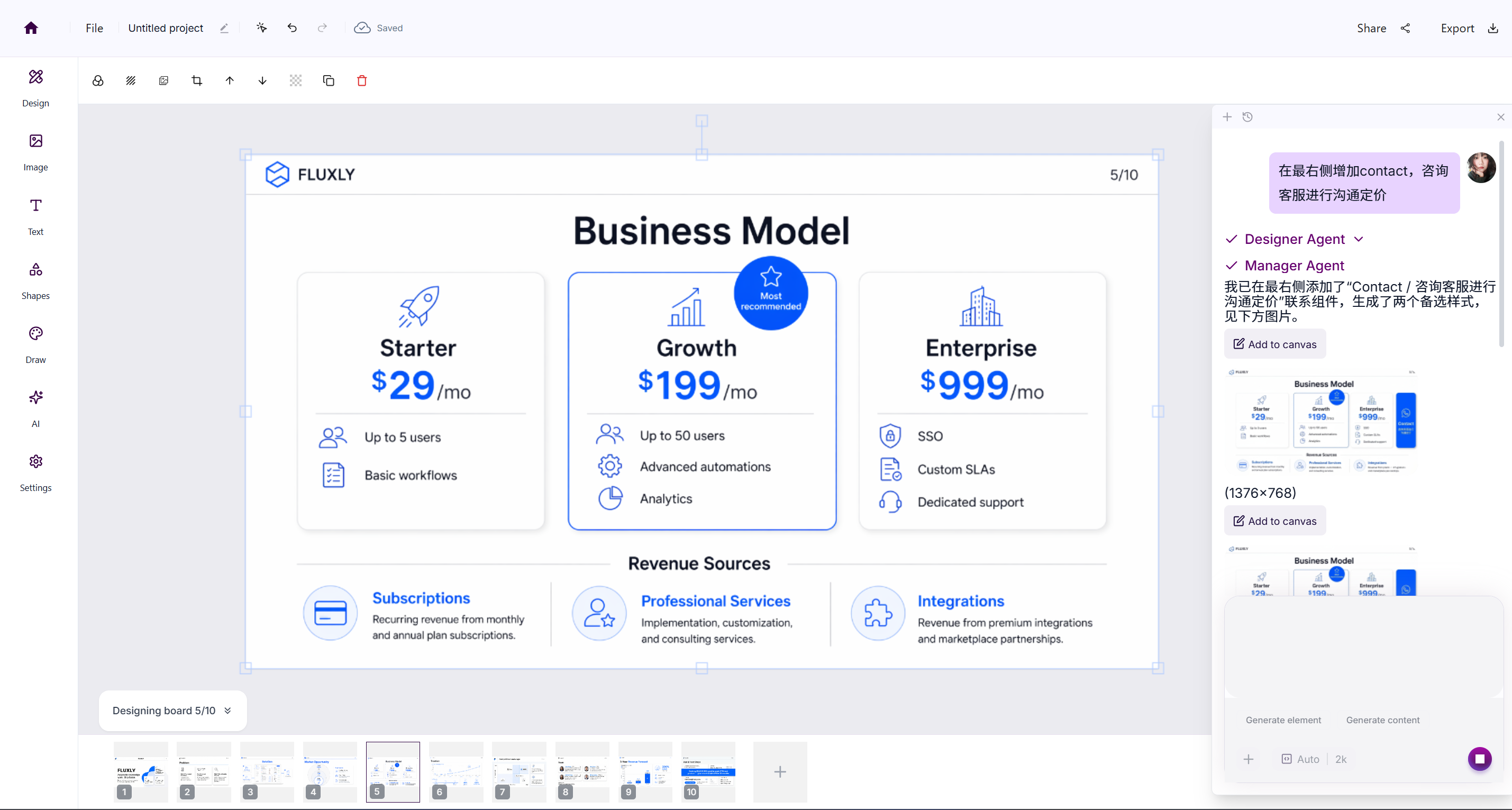
4. Right AI Panel
An AI-powered assistant panel that helps you refine your design.
You can:
- Generate new elements
- Modify existing content
- Adjust layout suggestions
- Continue editing via prompts
It allows natural language editing inside the canvas.
Read Editing with the AI Assistant →
Key Editing Capabilities
Visual Editing
You can directly manipulate design elements:
- Drag and drop components
- Resize images and text boxes
- Align elements automatically
- Adjust spacing and layout structure
Text Editing
- Inline text modification
- Font and style adjustments
- Multi-language support
- AI-assisted rewriting
AI-Assisted Editing
Surgepix allows you to edit using natural language:
You can say things like:
- “Make this more modern”
- “Change the layout to minimalist style”
- “Replace the background with something lighter”
- “Turn this into a product poster”
The AI will apply changes directly to the canvas.
Multi-Page Management
The editor supports structured multi-page design:
- Add new pages
- Duplicate layouts
- Maintain consistent style across slides
- Create full presentations or document sets
Edit vs Chat
- Chat → Idea generation and iteration
- Editor → Visual refinement and production
The editor is where ideas become final designs.
When to Use Editor
Use the editor when you want to:
- Polish generated outputs
- Build structured multi-page content
- Adjust layout precisely
- Prepare final assets for export
- Maintain brand consistency
Quick Tip
If Chat is your “creative brainstorming space”,
then Editor is your “design production studio”.