 SurgePix Docs
Edit Your Work
Repaint Part of an Image
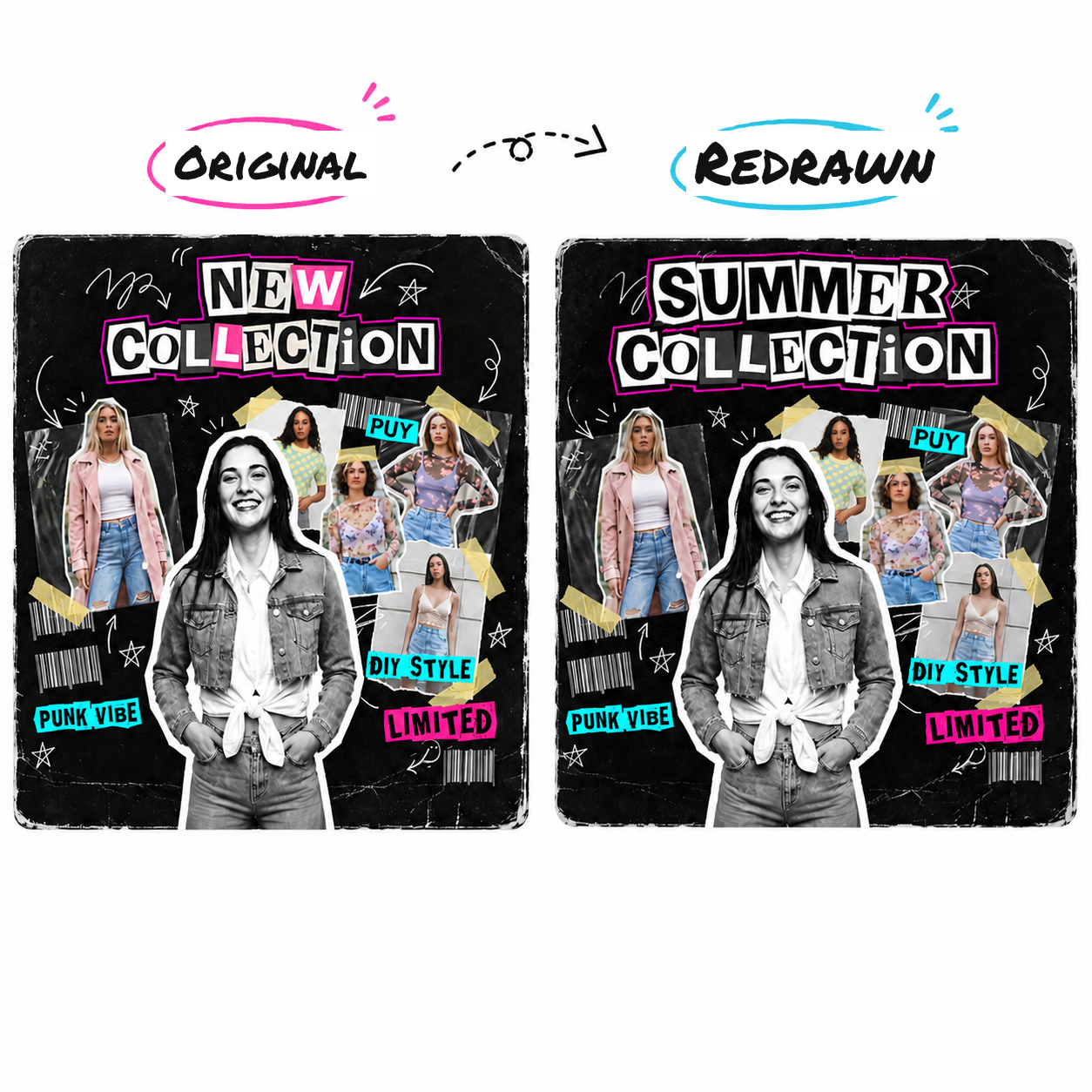
Sometimes only one part of an image is wrong. Inpainting lets you fix exactly that spot: mark the area, describe the change, and the assistant updates only that region—everything else stays untouched.
It solves two everyday problems:
- Circle instead of describe. No need to spell out "top-left," "next to the red button," "roughly center-right" in your prompt—just select the area with your cursor.
- Precise edits. The selection plus your description lock the change to that region only; the rest of the image doesn't move.
Method 1 — On the canvas (in a Project)
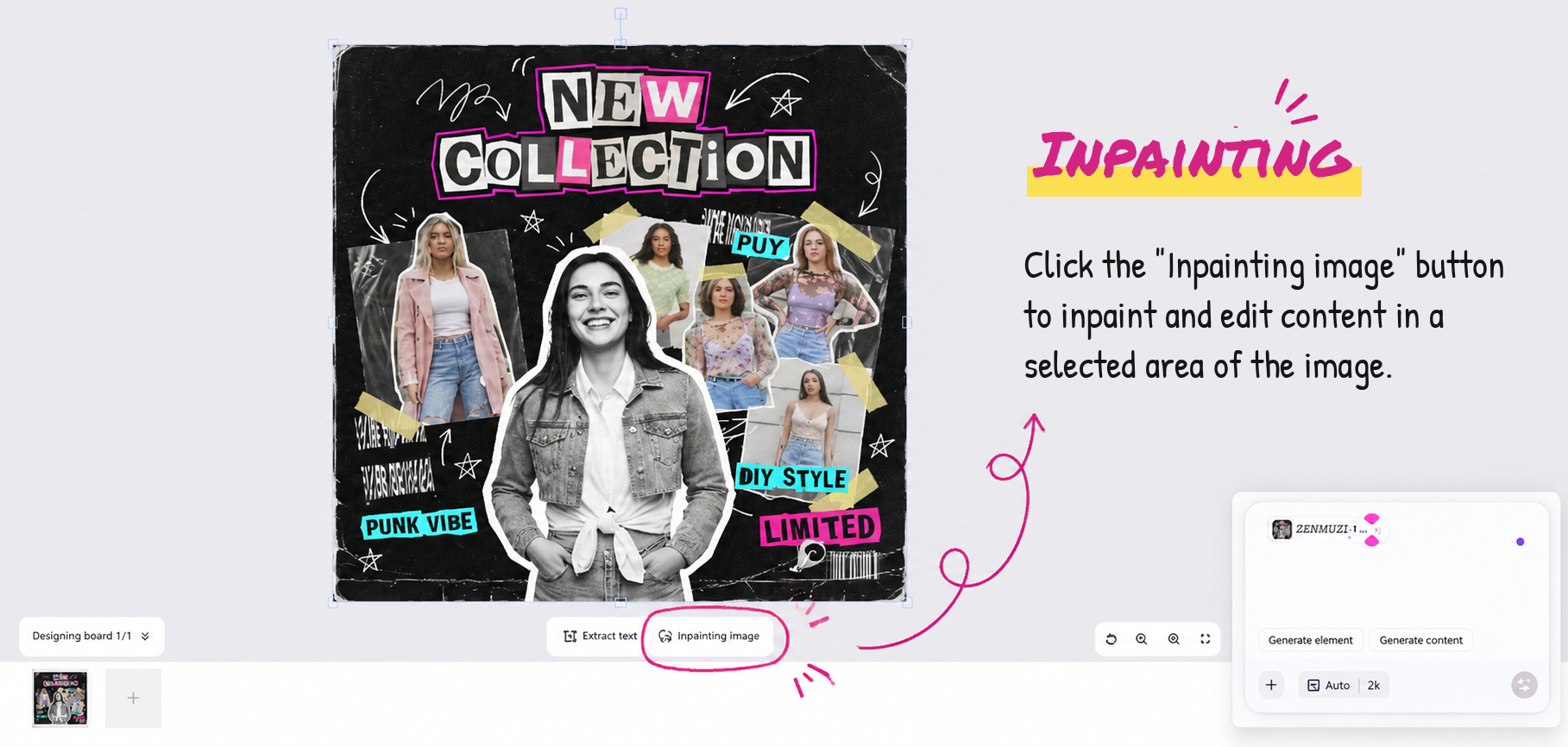
- Select an image, slide, or image element. A toolbar appears below it.
- Click Inpainting image.
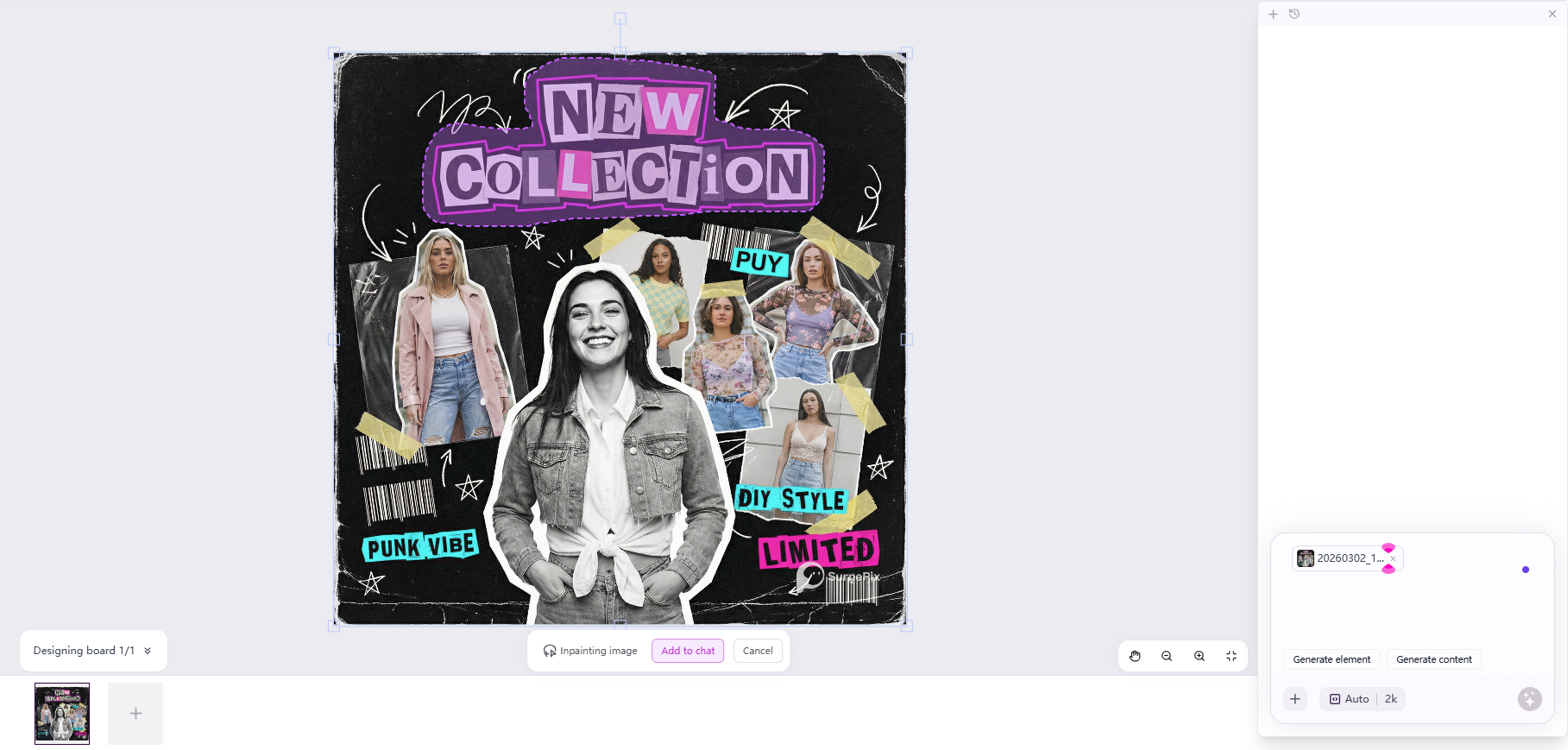
- Mark the area you want to change directly on the board.
- Click Add to chat to send the selection to the assistant.
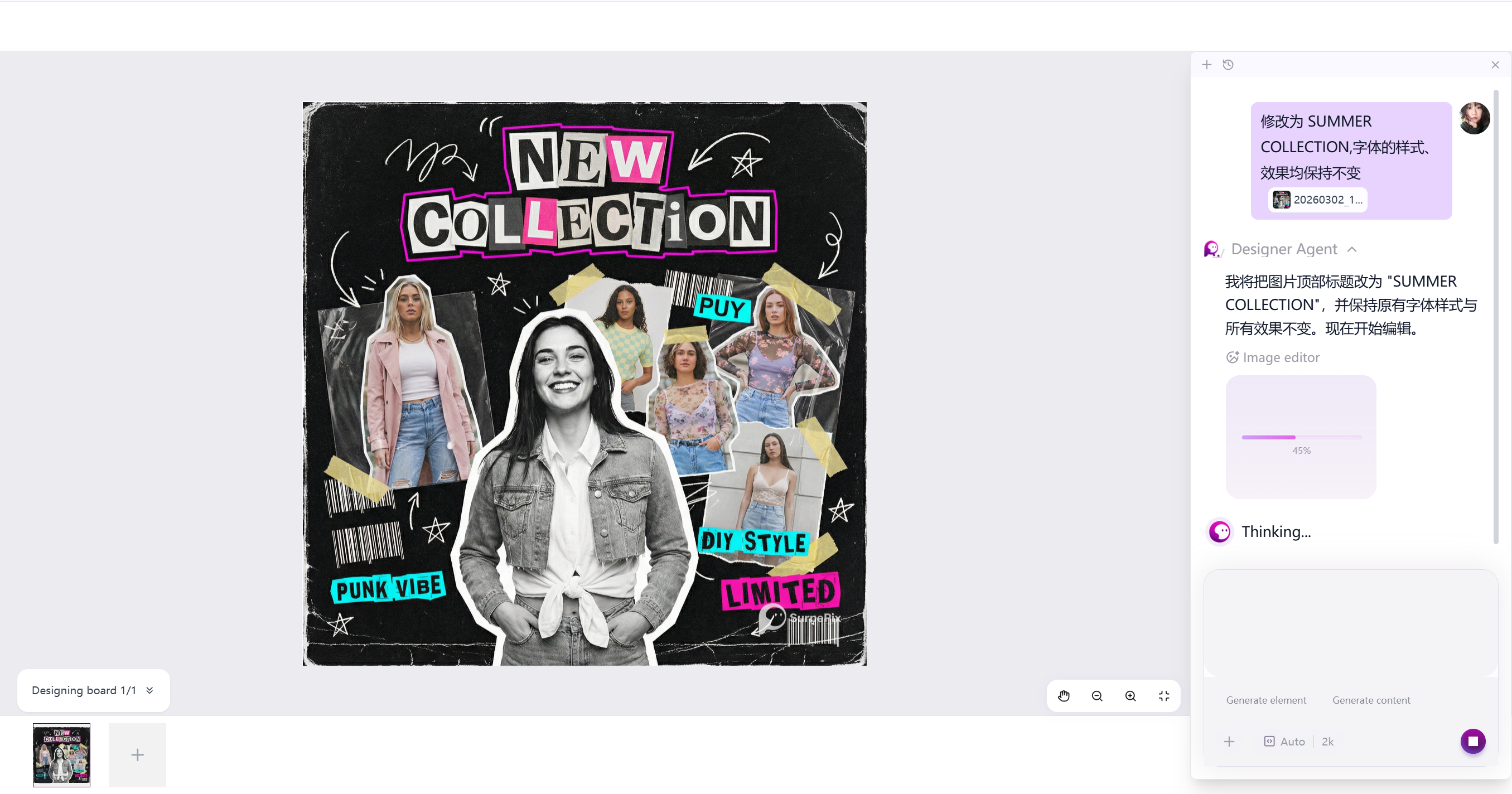
- Describe the change in plain language—for example, "Change the title to SUMMER COLLECTION, keep the font style."
Method 2 — On an image generated in chat
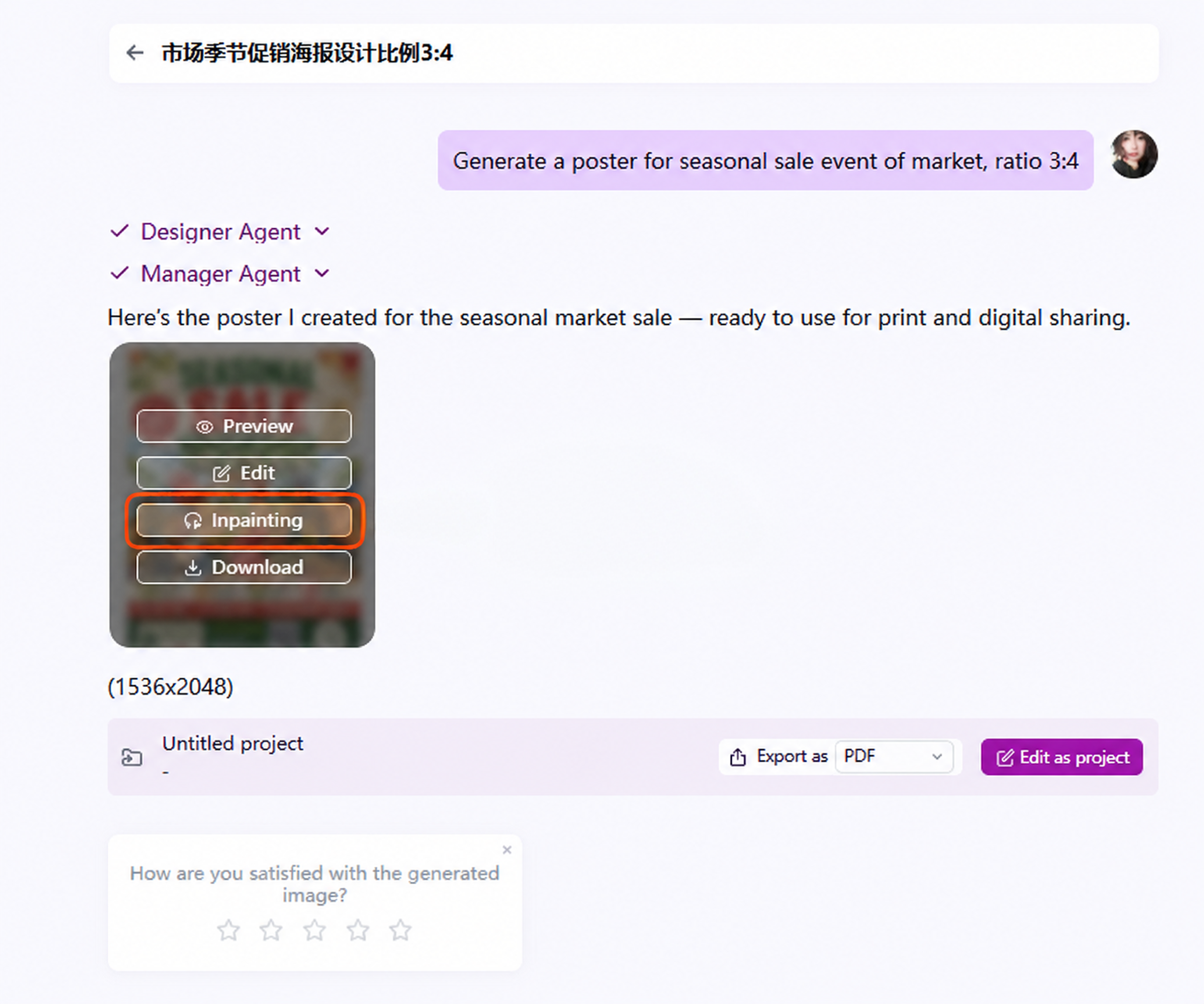
- Hover over the generated image and click Inpainting.
- In the dialog, circle the region you want to repaint.
- Click Add to chat.
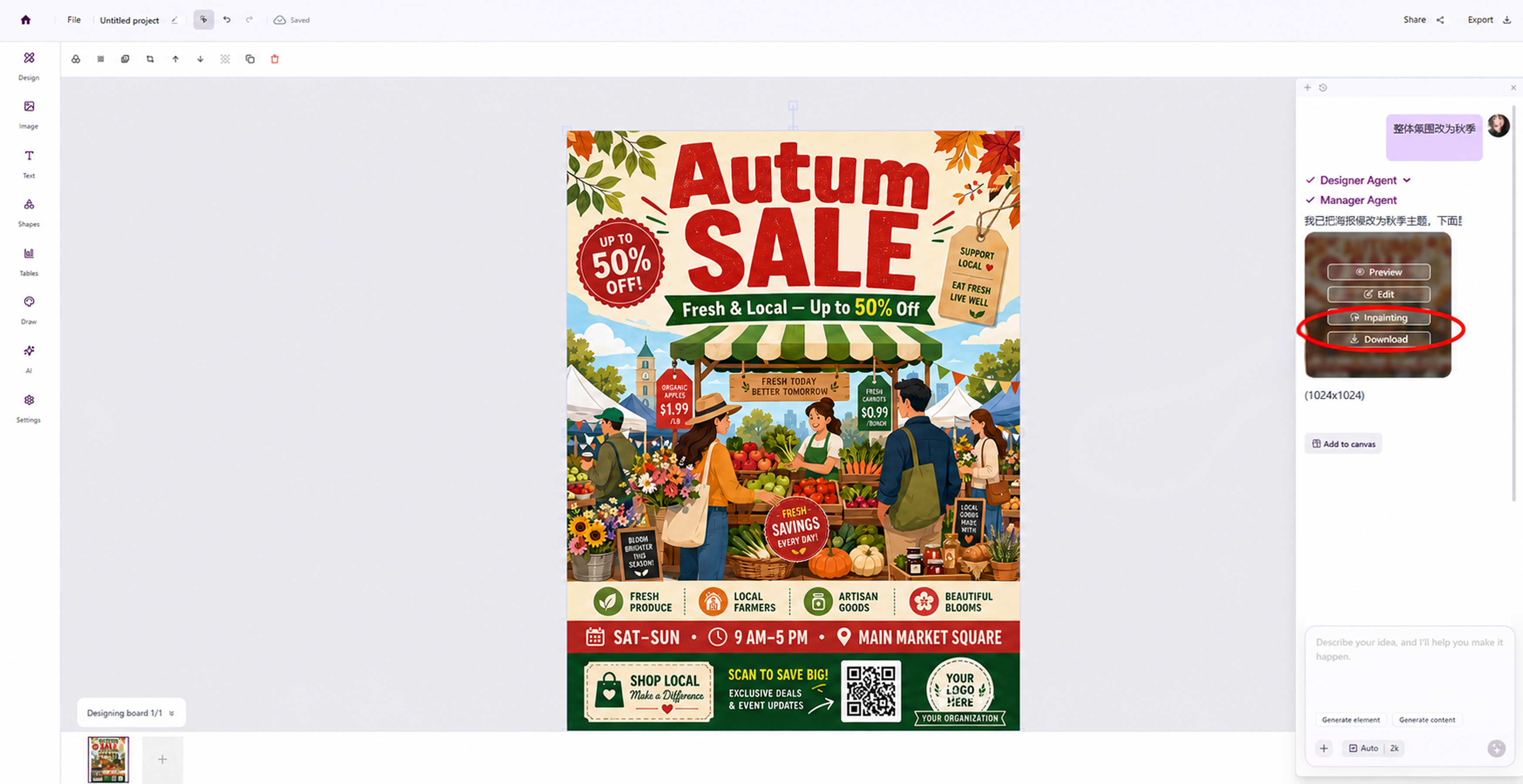
- Describe the change—for example, "Change the title text to Autumn, leave everything else unchanged."
- When the result is ready, click Add to canvas to bring it into your project.

When to use it
- Rewriting a title or label
- Swapping or updating a logo
- Replacing a phone screen
- Changing a person's pose or gesture
- Removing an unwanted element
- Replacing a product image
Tip
If you only need to replace or fix one element or area, use Inpainting. If you want to change the overall style, color, or composition, it's faster to adjust the prompt and regenerate.