 SurgePix Docs
Edit Your Work
Extract Text from Images
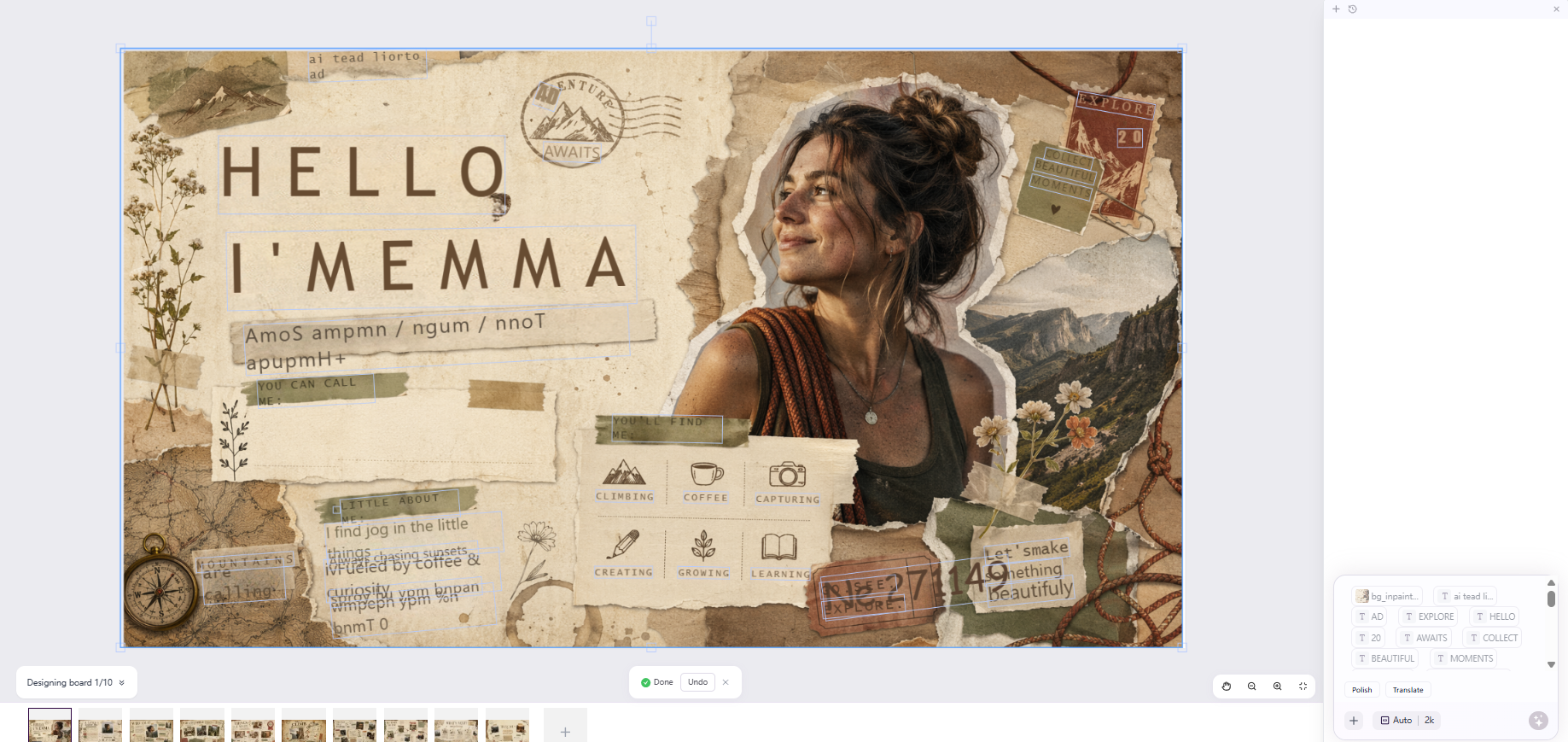
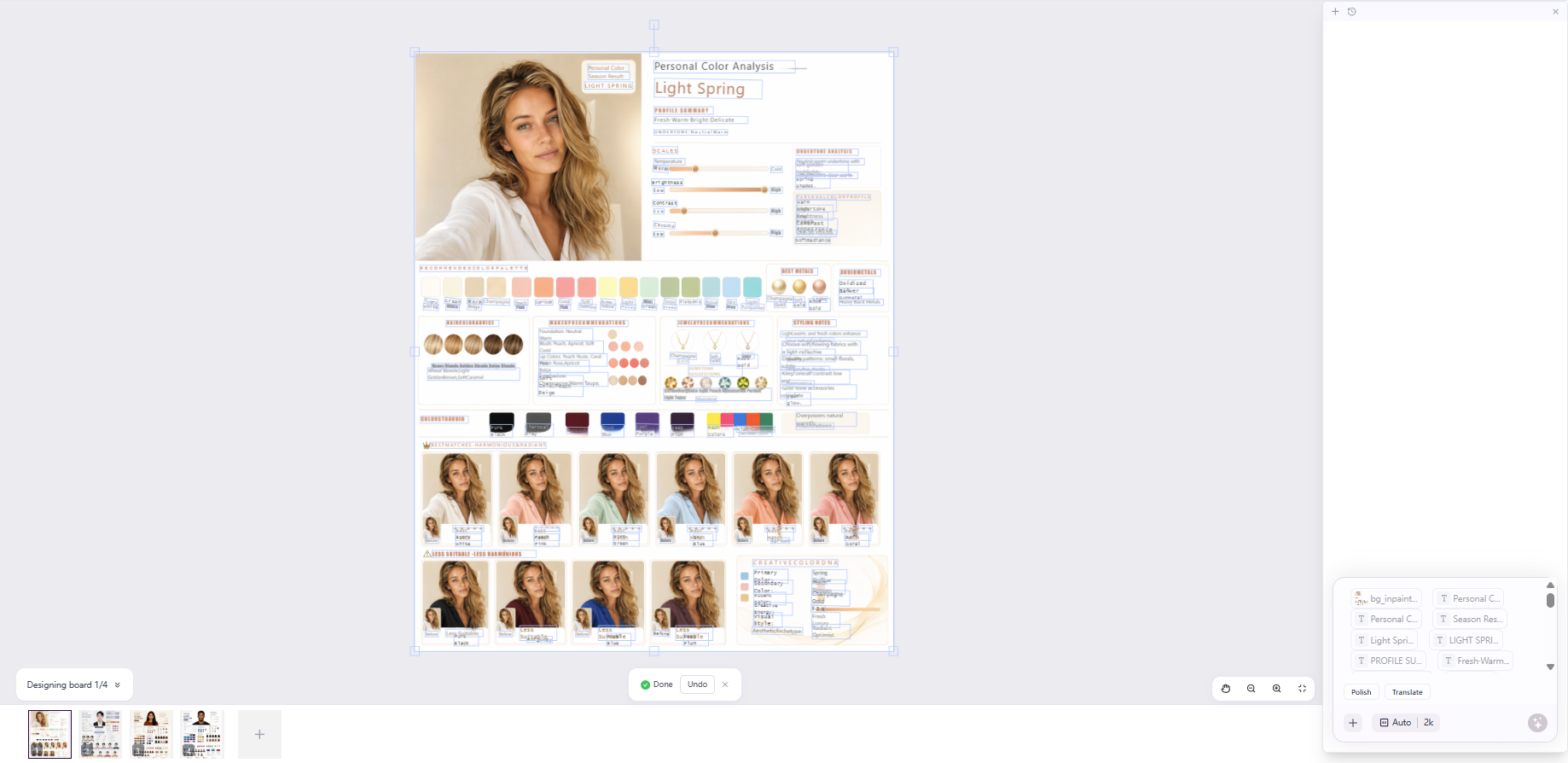
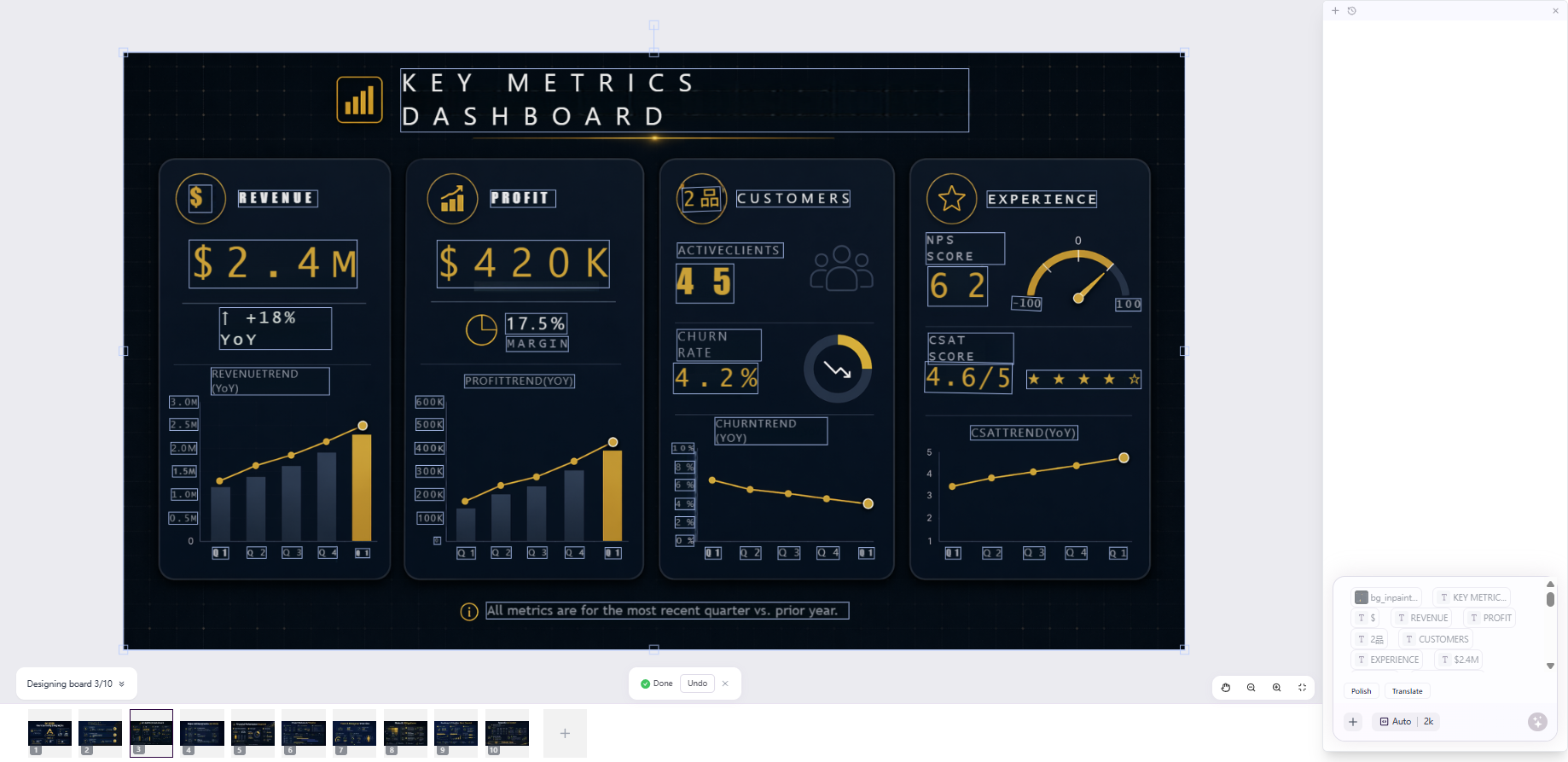
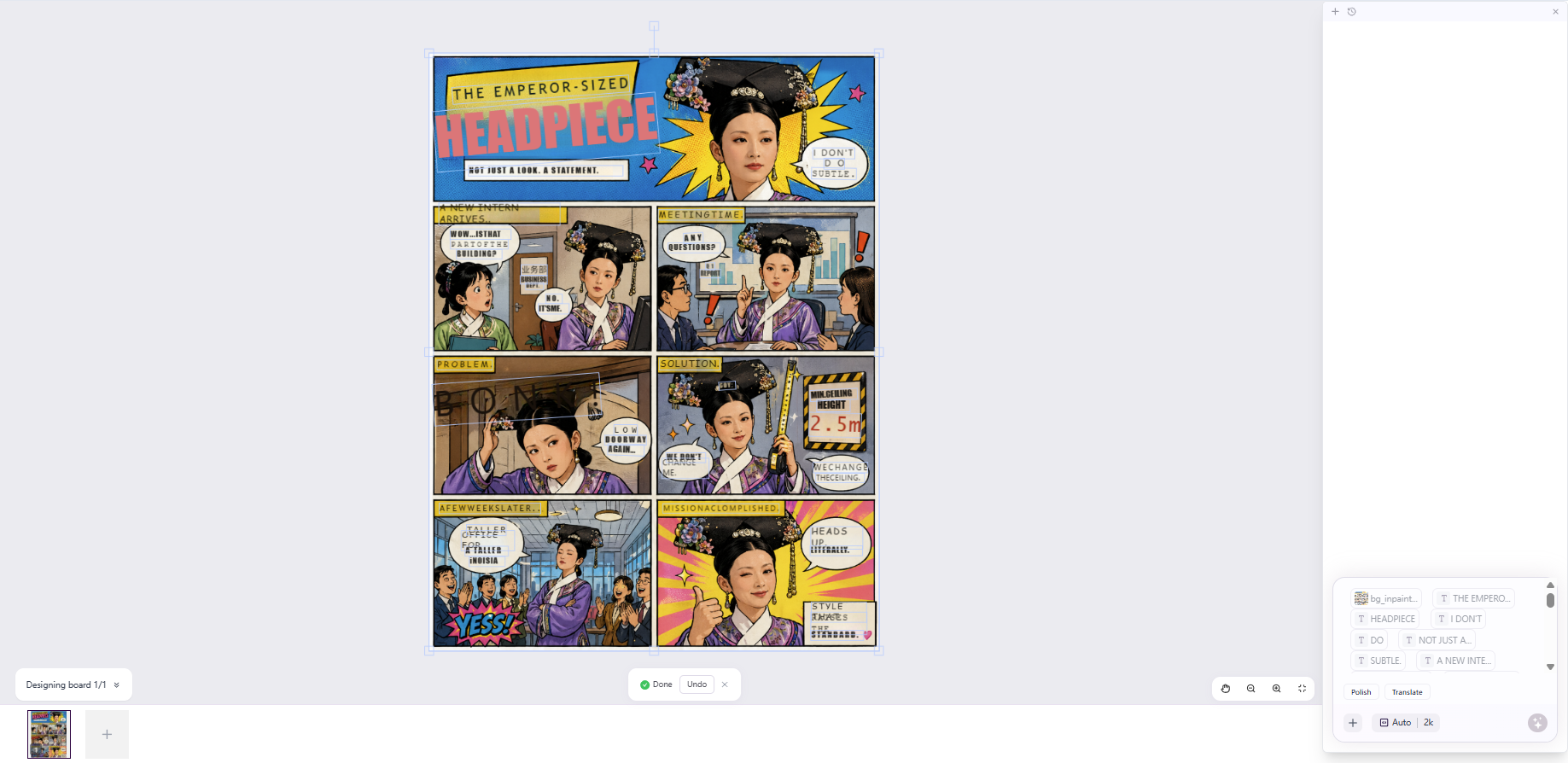
Text that's baked into an image or slide is normally locked. Extract Text separates that text into individual, editable layers in one click—so you can rewrite copy without regenerating the artwork.
How it works
- Open a Project and go to the canvas.
- Select a single image, a slide, or an image element on the page. A toolbar appears below it.
- Click Extract text.
- While it's processing, you can click Cancel to stop.
- When extraction finishes, the text becomes editable layers. Keep the result, or Undo to revert.
You can then edit any text layer directly—wording, font, size, and color—while the rest of the image stays in place.
When to use it
- Updating the details on a poster
- Editing the copy on a slide
- Editing dialogue in a comic
- Editing labels in an infographic
Tips & limitations
- Extraction converts all text on the selected page into editable layers, and fonts are matched from the SurgePix library.
- Because the matched font can differ from the original, spacing and position may shift slightly—expect minor manual adjustments afterward.
- Stylized, widely-spaced, or script ("art") text may be misread or won't match the original font exactly, so always proofread the extracted text.
- For art text or heavily stylized titles, use Inpainting instead and let the assistant regenerate that area from a prompt.