 SurgePix Docs
Home overview
Home page is your starting point in Surgepix. From here, you can create new AI-generated visuals, browse inspiration templates, access previous chats and existing projects, and manage your account settings, subscription plan, billing, and language preferences.
AI Visual Generation
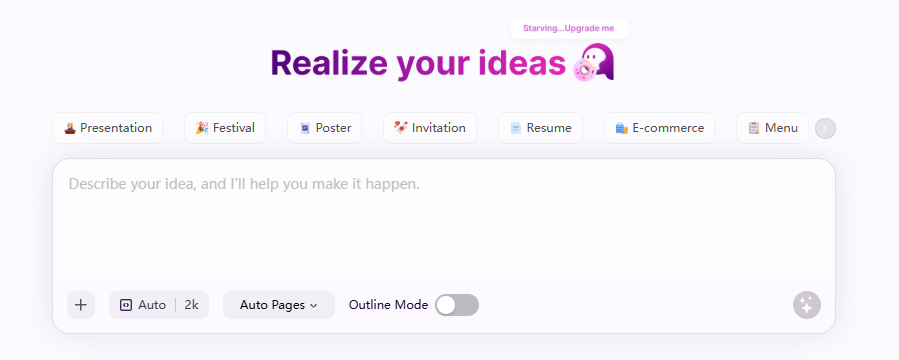
Prompt Input
Enter your idea in the large text box at the center of the page. Surgepix uses your description to generate visuals based on your requirements.
Your prompt can be as simple or as detailed as you like. For example:
Generate a poster for seasonal sale event of market
Or provide a detailed multi-paragraph brief with content, style, branding, and layout requirements.
See Prompting best practices for more information.
Choose a Content Type
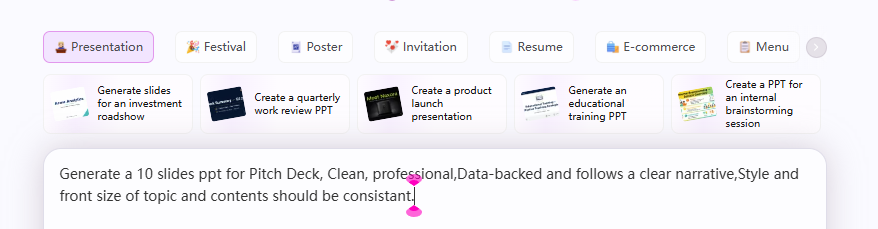
Selecting a content type is optional, but it can help produce more structured and relevant results when you already know the format you need.
Choose from categories such as:
- Presentation
- Festival
- Poster
- Invitation
- Resume
- E-commerce
- Menu
- Social Media
You can also select one of the ready-to-use examples displayed above the prompt box to quickly start with a predefined creative direction.
Upload Reference Files
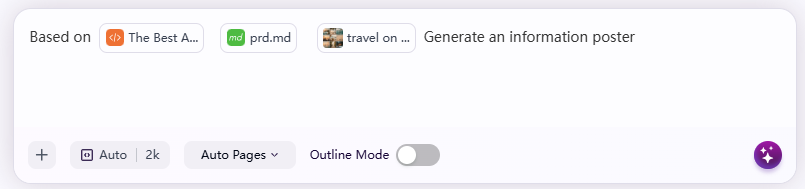
Click the + button below the prompt box to upload supporting materials.
Attachments can be used as:
- Visual references
- Brand assets (logos, images, style guides)
- Content sources
- Supporting documents for AI analysis
Supported file formats include:
- JPG
- PNG
- DOC
- DOCX
- TXT
- MD
- HTML
Surgepix can analyze uploaded materials and incorporate relevant information into the generated output.
Generation Settings
Optional generation settings are available below the prompt area.
Aspect ratio
Choose the canvas proportion for your design:
- Auto
- 1:1
- 3:4
- 2:3
- 9:16
Direction
Specify the overall layout orientation:
- Vertical
- Horizontal
Resolution
Select the output quality:
- 1K
- 2K
Pages
For multi-page content such as presentations or documents, choose the desired number of pages or leave it on Auto Pages for AI-assisted planning.
Outline Mode
Enable Outline Mode when you want Surgepix to generate and organize content structure before producing the final design.
Quick Tip
If you're unsure about technical settings, simply enter your prompt, upload any reference materials you already have, and leave the remaining options on Auto.
Surgepix will automatically determine suitable layout, page count, aspect ratio, and generation settings based on your prompt and uploaded content.
Template Library
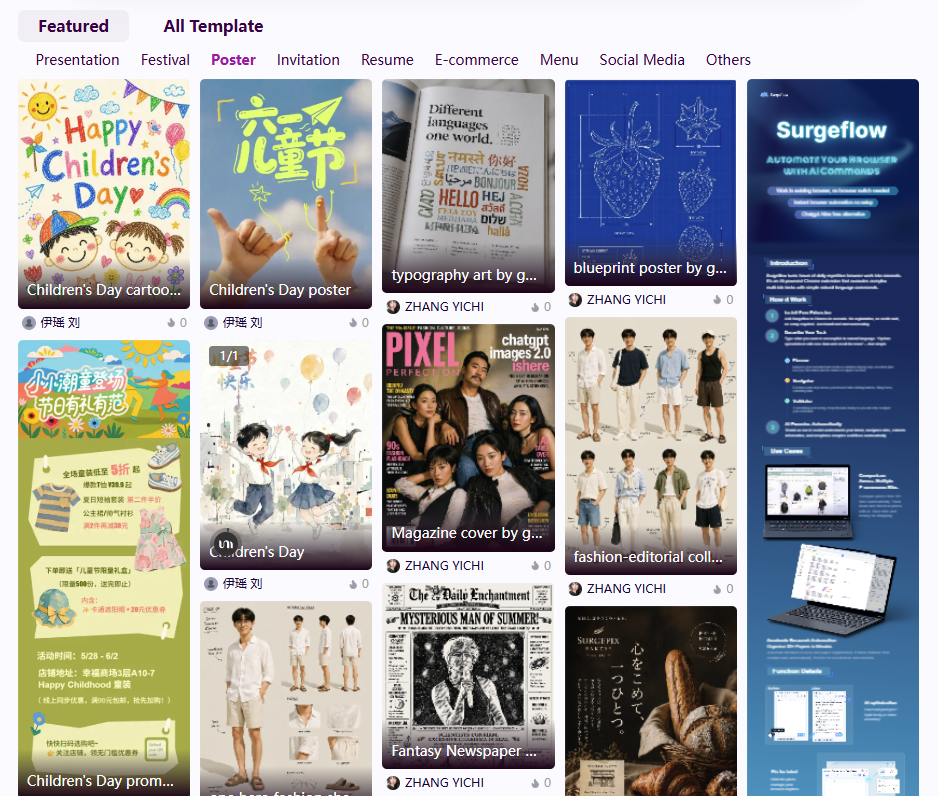
Below the creation workspace, you'll find the Template Library, a curated collection of community creations and ready-to-use designs. Templates can be used as inspiration, starting points for new projects, or references for layout and visual style.
Browse templates by category using the navigation tabs, or explore featured creations recommended by the community.
Rich Template Categories
Surgepix provides a wide range of templates designed for different creative and professional scenarios. Categories are clearly organized on the Home Page, helping you quickly discover relevant examples and start creating faster.
Presentation
Create professional slide decks for business, education, and communication.
Common use cases include:
- Business proposals
- Company reports
- Project updates
- Academic presentations
- Research summaries
- Training materials
Festival
Design seasonal and holiday-themed visuals for celebrations and promotions.
Common use cases include:
- Holiday greetings
- Festival promotions
- Event announcements
- Seasonal campaigns
- Celebration posters
- Community activities
Poster
Generate eye-catching visual designs for online and offline promotion.
Common use cases include:
- Product launches
- Marketing campaigns
- Event advertisements
- Exhibition displays
- Personal portfolios
- Public information posters
Invitation
Create beautifully designed invitations for both personal and professional occasions.
Common use cases include:
- Weddings
- Birthday parties
- Conferences
- Corporate events
- Networking gatherings
- Special celebrations
Resume
Build modern and professional resumes that highlight your skills and experience.
Common use cases include:
- Job applications
- Internship applications
- Personal portfolios
- Professional profiles
- Career presentations
E-commerce
Create marketing assets optimized for online stores and digital commerce.
Common use cases include:
- Product showcase images
- Promotional banners
- Storefront graphics
- Product comparison cards
- Sales campaign materials
- Marketplace listings
Menu
Design clear and attractive menus for restaurants, cafés, and food services.
Common use cases include:
- Restaurant menus
- Café menus
- Beverage lists
- Seasonal specials
- Promotional meal sets
- Digital menu boards
Social Media
Generate content optimized for major social platforms.
Common use cases include:
- Social posts
- Story graphics
- Cover images
- Promotional creatives
- Brand announcements
- Community engagement content
Others
Explore additional creative formats beyond the predefined categories.
Examples include:
- Infographics
- Educational materials
- Visual reports
- Personal projects
- Creative experiments
- Custom AI-generated designs
Featured Templates
The Featured section showcases high-quality templates created by the Surgepix community and official team.
You can:
- Discover trending design styles
- Explore real-world use cases
- Learn effective prompting techniques
- Reuse layouts as a starting point
- Generate similar designs with your own content
Simply click any template card to preview the design and use it as inspiration for your next project.
Want to share your own creations with the community? You can publish a completed project as a reusable template for other users to discover and build upon. See How to Publish a Template for step-by-step instructions.
Quick Tip
If you're not sure how to describe your idea, start by browsing templates in the category closest to your goal. Many users find it easier to customize an existing style than to begin with a blank prompt.
Templates in Surgepix are not only for browsing inspiration — they can also be used as a starting point for your own creations.
You can open any template from the Home Page and either:
- Remix the design directly
- Reuse the original prompt
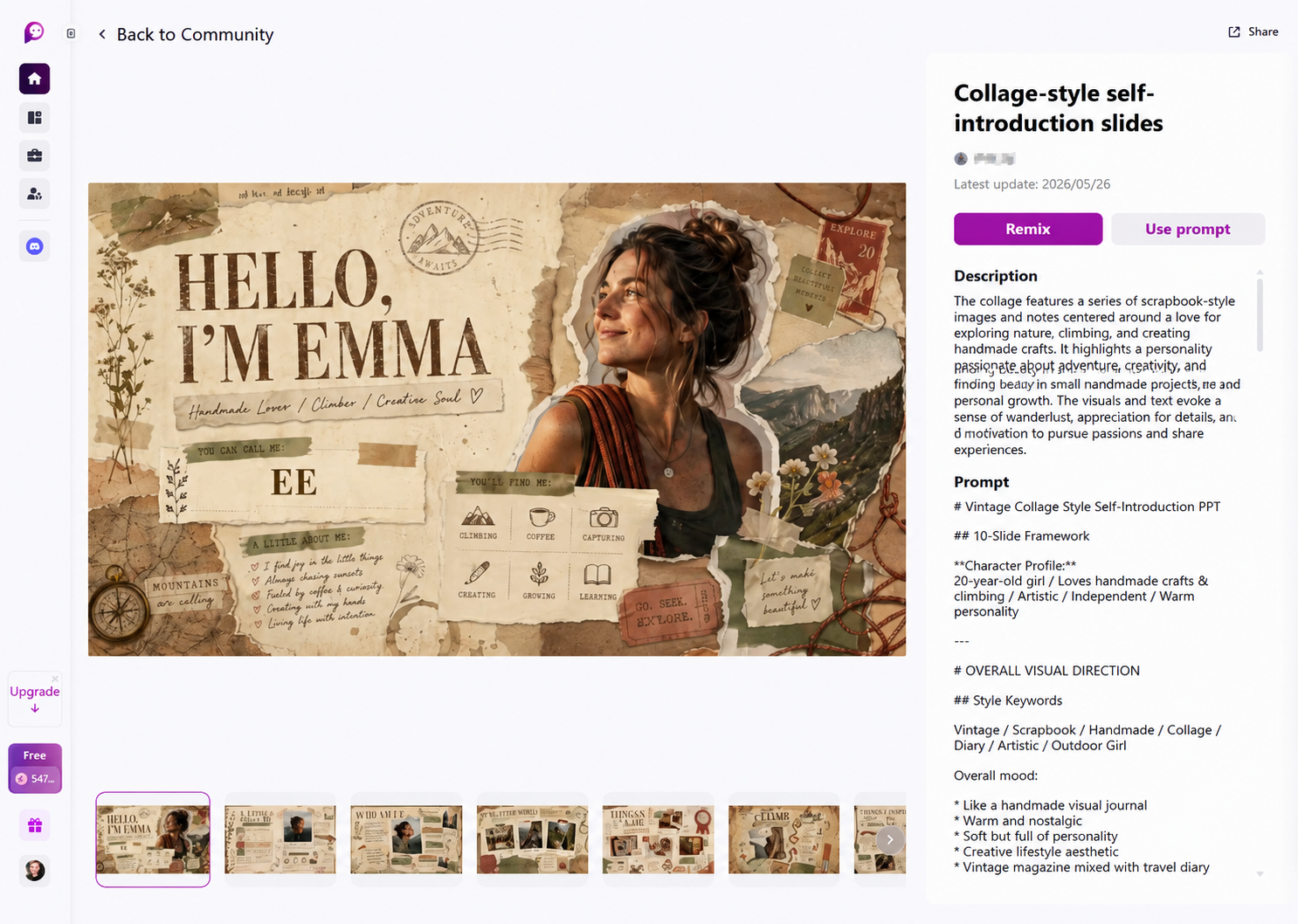
Open a Template
From the Home Page, browse the Featured or category-based template sections.
Click any template card to open its detail page.
The template detail page includes:
- Template preview images
- Creator information
- Last update date
- Description
- Full prompt and creative direction
- Remix and prompt actions
This page helps you understand how the design was created and how you can adapt it for your own project.
Template Information Panel
The right-side information panel displays detailed information about the selected template.
Typical sections include:
Description
A summary of the template’s visual concept, intended style, and creative direction.
Prompt
The original AI prompt used to generate the template.
Some prompts may include:
- Character descriptions
- Style keywords
- Layout instructions
- Color palette guidance
- Visual mood references
- Multi-slide structure planning
Reviewing prompts is a useful way to understand how high-quality AI-generated designs are structured.
Remix a Template
Click Remix to open the template directly in the editor workspace.
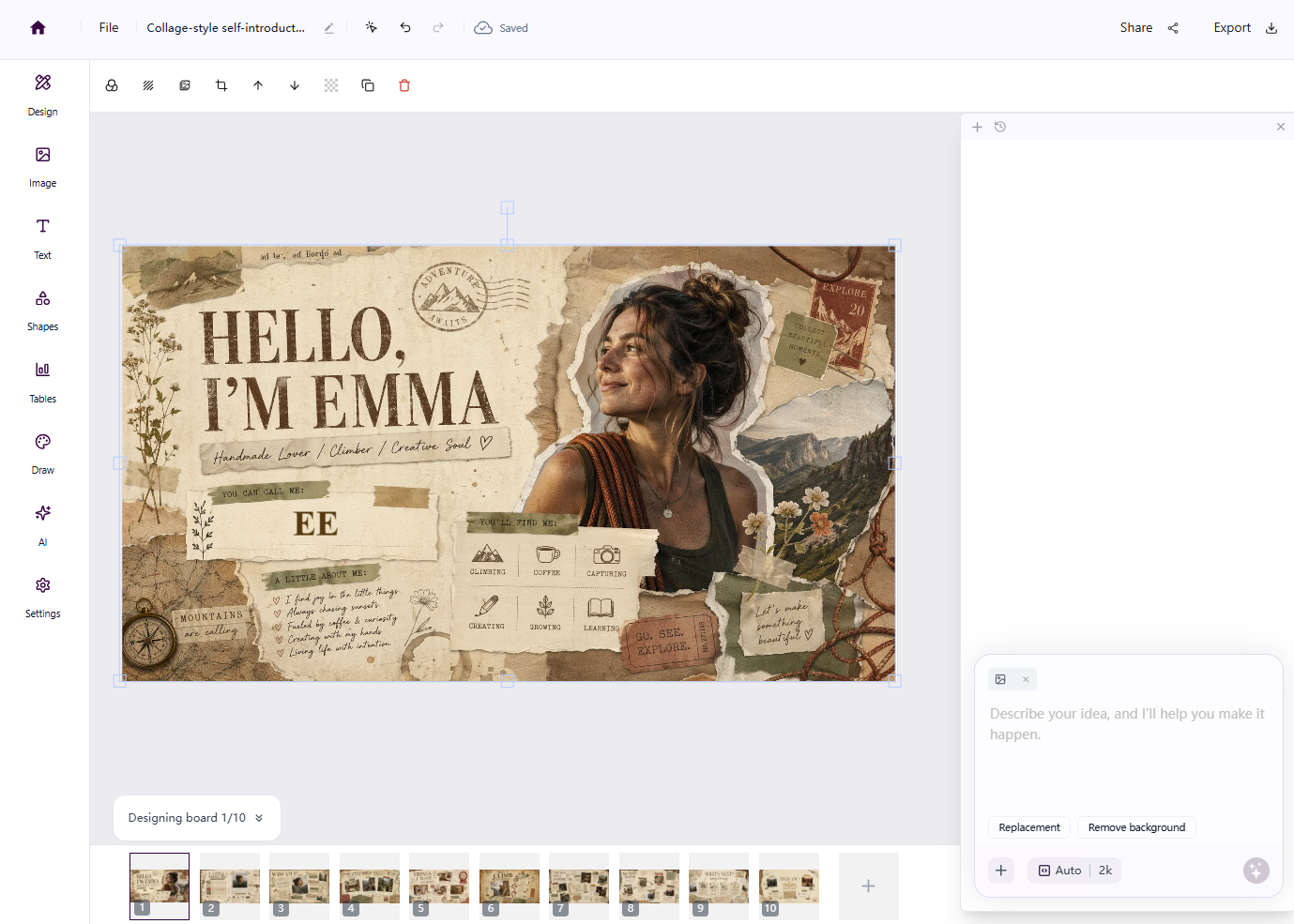
When remixing a template, Surgepix will reuse the original:
- Layout structure
- Visual style
- Prompt direction
- Design composition
You can then modify:
- Text content
- Images
- Colors
- Layout elements
- Prompt instructions
- Uploaded assets
Remixing is the fastest way to create a polished result while customizing it for your own needs.
Use Prompt
Click Use prompt to copy the template’s prompt into the Home Page input box.
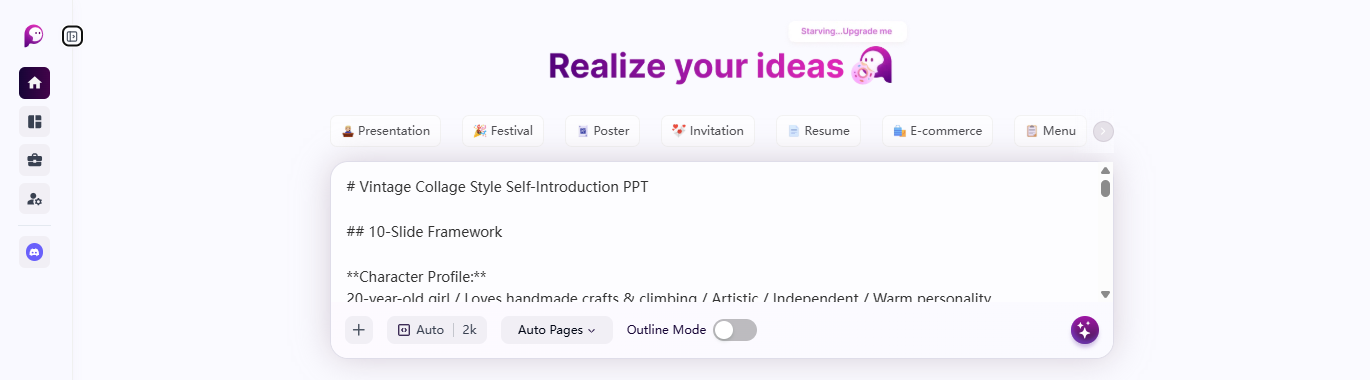
This allows you to:
- Reuse the creator’s prompt structure
- Modify keywords and requirements
- Generate a completely new version
- Learn effective prompting techniques
After clicking Use prompt, you will be redirected back to the Home Page with the prompt automatically inserted into the main input box.
You can then:
- Edit the prompt
- Upload your own reference files
- Adjust settings such as aspect ratio or resolution
- Generate a new design based on the template inspiration
Share Templates
Use the Share button in the top-right corner of the template page to share template links with others.
Quick Tip
If you find a template style you like but want different content, start with Use prompt.
If you want to preserve the original layout and quickly customize details, use Remix instead.
Side bar and navigation
The left sidebar provides quick access to the main areas of Surgepix. From here, you can navigate between projects, tools, account settings, and community resources at any time.
Use the collapse/expand button at the top of the sidebar to switch between compact and full navigation modes.
Navigation
Home
Return to the main dashboard to start new AI creations, browse templates, and access featured content.
Workspace
Open your previous chats, generated projects, and saved workspaces.
Use Workspace to:
- Continue unfinished projects
- Revisit previous AI conversations
Tools
Access Surgepix’s collection of ready-to-use AI tools and utility features.
- Converter
- Image Editor
- Creative AI
- Image Generator.
Setting
Open your account settings and personal preferences.
Available settings include:
- Billing management
- Subscription plan
- Language preferences
- Credit information
- Account details
Join Discord

Click Join our Discord! to visit the Surgepix community server.
The Discord community is a place to:
- Share creations
- Ask questions
- Report issues or feedback
- Discover prompts and workflows
- Connect with other creators
- Receive product updates and announcements
Upgrade Plan

If you are using the Free plan or a lower-tier subscription, an upgrade card will appear in the sidebar.
Click Upgrade to:
- View available subscription plans
- Unlock additional credits
- Access higher generation limits
- Enable advanced features and tools
For more details, see Plans and Credits.
Plans and Credits

The sidebar also displays your current subscription plan and available credit balance.
Credits are used for AI generation features across Surgepix.
Depending on your plan and activity, your balance may include:
- Daily plan credits
- Reward credits
Credit availability and reset timing may vary by plan type.
User Menu
At the bottom of the sidebar, click your profile avatar and account name to open the user menu.
From here, you can:
- Log out of Surgepix