 SurgePix Docs
Create from Templates
Templates in Surgepix are not only for browsing inspiration — they can also be used as a starting point for your own creations.
You can open any template from the Home Page and either:
- Remix the design directly
- Reuse the original prompt
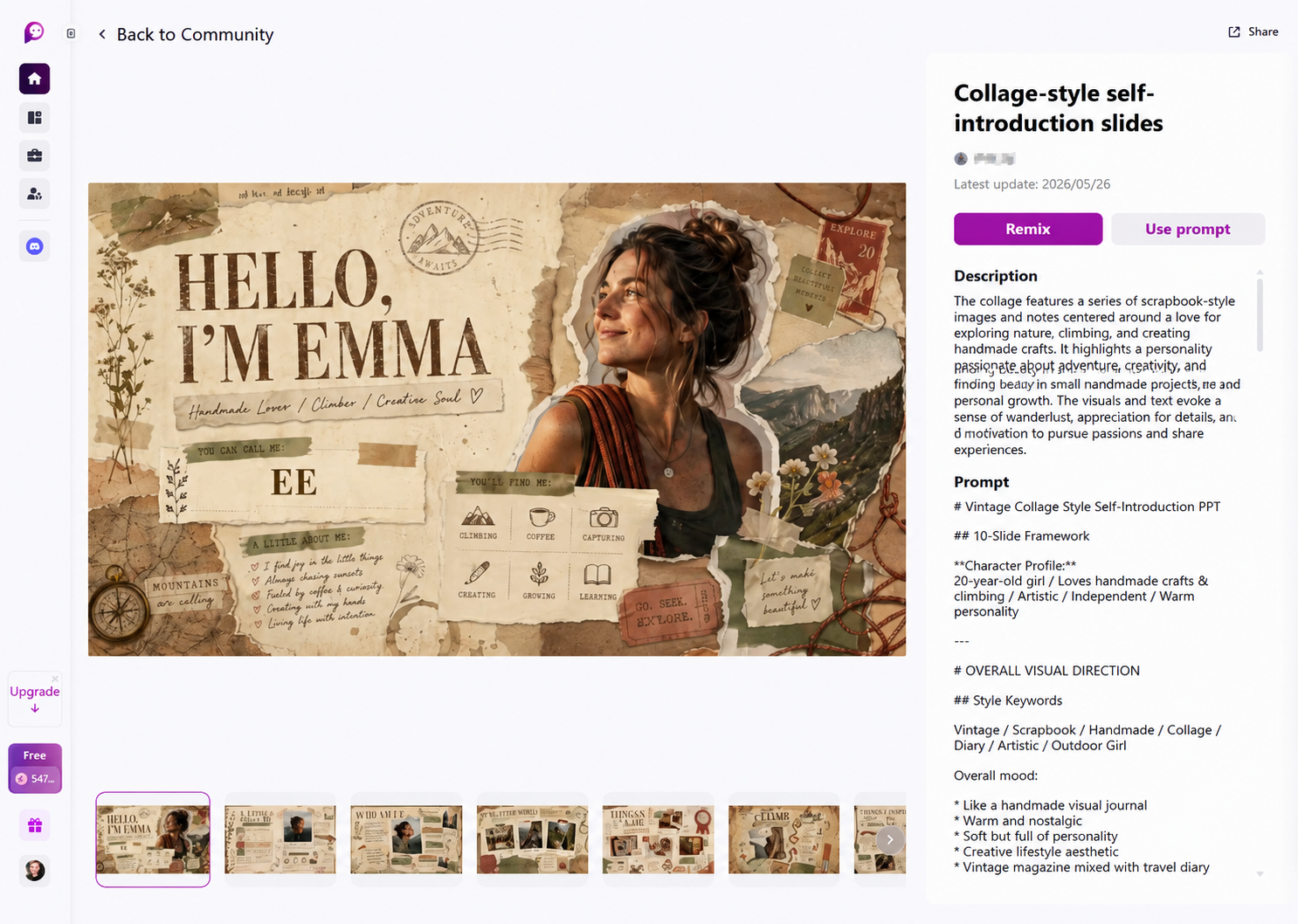
Open a Template
From the Home Page, browse the Featured or category-based template sections.
Click any template card to open its detail page.
The template detail page includes:
- Template preview images
- Creator information
- Last update date
- Description
- Full prompt and creative direction
- Remix and prompt actions
This page helps you understand how the design was created and how you can adapt it for your own project.
Template Information Panel
The right-side information panel displays detailed information about the selected template.
Typical sections include:
Description
A summary of the template’s visual concept, intended style, and creative direction.
Prompt
The original AI prompt used to generate the template.
Some prompts may include:
- Character descriptions
- Style keywords
- Layout instructions
- Color palette guidance
- Visual mood references
- Multi-slide structure planning
Reviewing prompts is a useful way to understand how high-quality AI-generated designs are structured.
Remix a Template
Click Remix to open the template directly in the editor workspace.
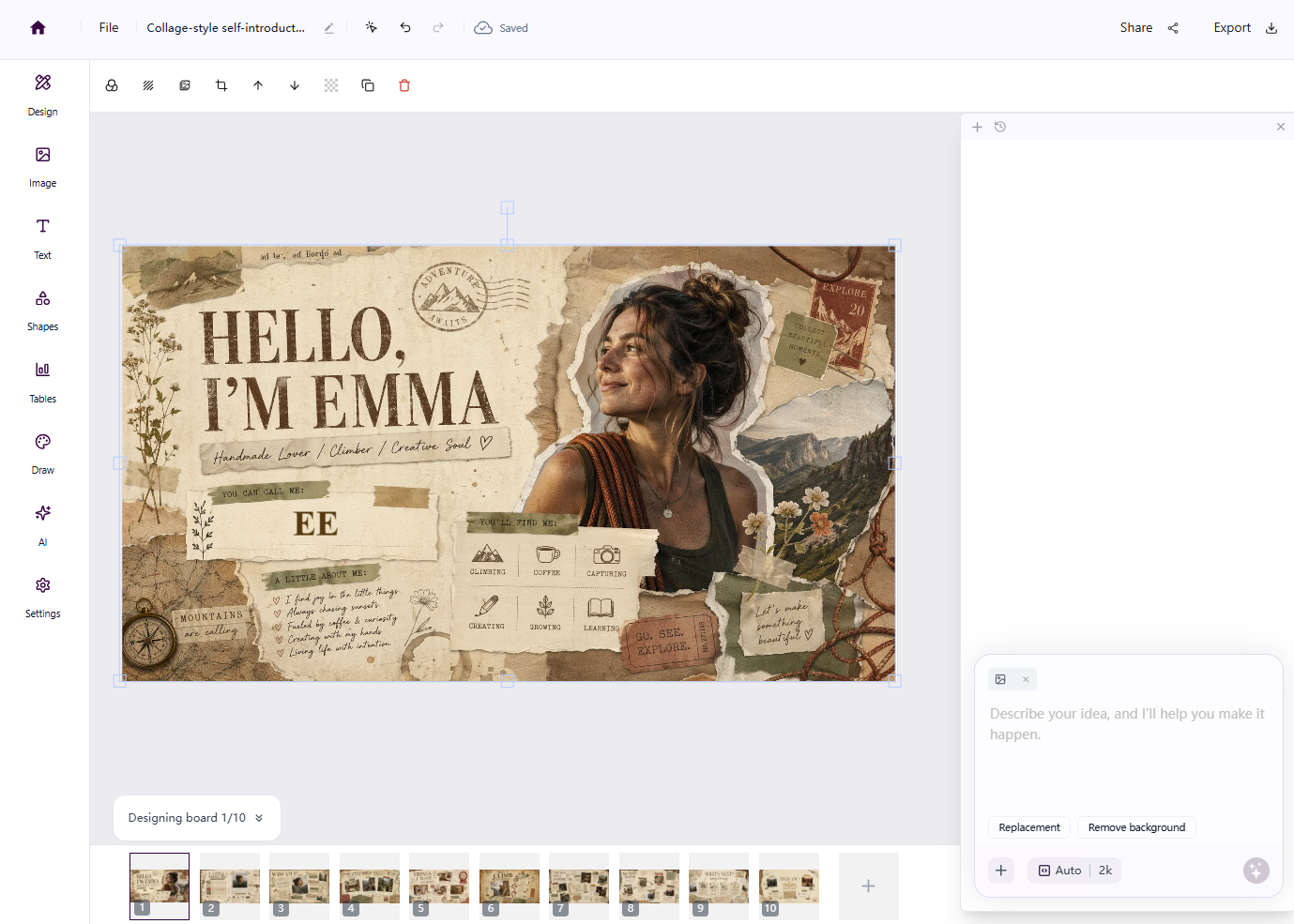
When remixing a template, Surgepix will reuse the original:
- Layout structure
- Visual style
- Prompt direction
- Design composition
You can then modify:
- Text content
- Images
- Colors
- Layout elements
- Prompt instructions
- Uploaded assets
Remixing is the fastest way to create a polished result while customizing it for your own needs.
Use Prompt
Click Use prompt to copy the template’s prompt into the Home Page input box.
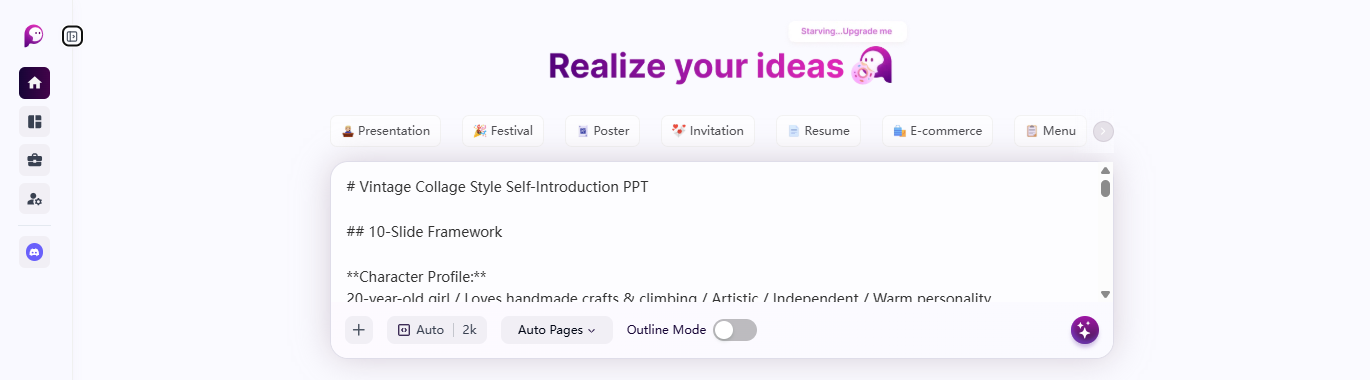
This allows you to:
- Reuse the creator’s prompt structure
- Modify keywords and requirements
- Generate a completely new version
- Learn effective prompting techniques
After clicking Use prompt, you will be redirected back to the Home Page with the prompt automatically inserted into the main input box.
You can then:
- Edit the prompt
- Upload your own reference files
- Adjust settings such as aspect ratio or resolution
- Generate a new design based on the template inspiration
Share Templates
Use the Share button in the top-right corner of the template page to share template links with others.
Quick Tip
If you find a template style you like but want different content, start with Use prompt.
If you want to preserve the original layout and quickly customize details, use Remix instead.