 SurgePix Docs
Basic Editing
Once you're in a Project, you can refine any design by hand. Add and arrange content with the toolbar on the left, then fine-tune each element with the menu that appears when you select it.
The editing toolbar (left)
The toolbar on the left of the canvas holds the tools for adding and arranging content—templates, assets, text, shapes, tables, drawing, and canvas settings.
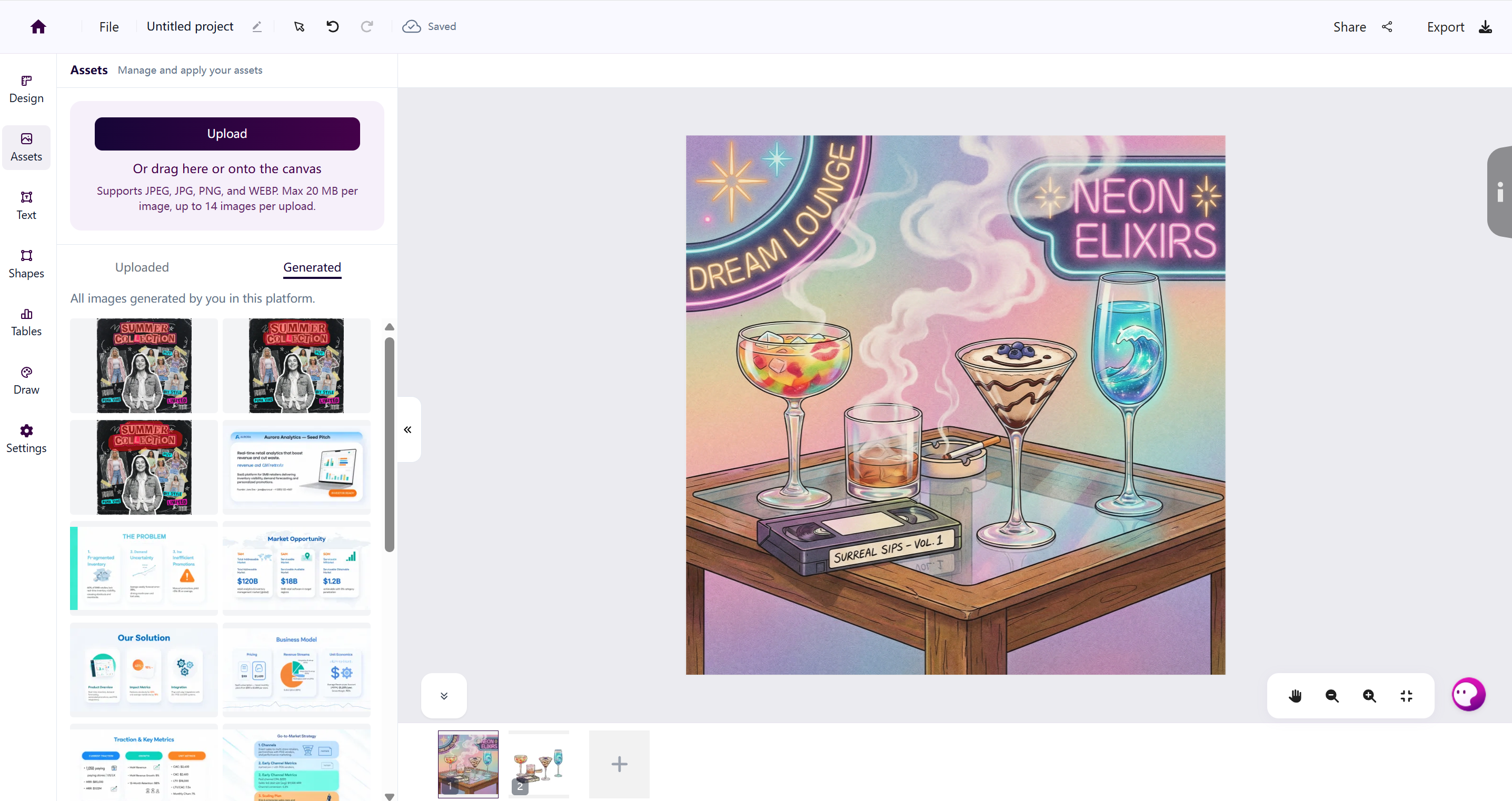
From top to bottom:
- Design — Browse a library of community templates and insert one to start from.
- Assets — Upload your own images, or reuse images you've generated on SurgePix. Drag files onto the canvas, or use the Upload button. Supports JPEG, JPG, PNG, and WEBP, up to 20 MB per image and 14 images per upload. The Uploaded and Generated tabs switch between your uploads and images you've created on the platform.
- Text — Insert and style text.
- Shapes — Insert shape elements.
- Tables — Generate a chart from a data table. Choose Bar chart or Pie chart, fill in the Category / Value / Color rows (use Add Row or Clear All), then toggle Axis Labels, Gridlines, and Data Labels as needed.
- Draw — Free-hand drawing.
- Settings — Adjust canvas size and background.
Selecting an element
When you select an element on the canvas, a toolbar appears with actions for that element. Some controls are shared by every layer; the rest depend on the type you selected.
Available for any layer
These controls appear in the top toolbar for every layer type:
- Layer order — move the selected layer up or down in the stacking order (bring forward / send backward).
- Opacity — adjust how transparent the layer is.
- Copy — duplicate the layer.
- Delete — remove the layer.
When an image is selected
A menu appears below the image with image-specific actions:
- Crop — trim the image to the area you want.
- Remove Background — cut out the subject and make the background transparent.
- Extract text — split text baked into the image into editable layers. See Extract Text from Images.
- Inpainting image — repaint part of the image from a description. See Inpainting.
- More — additional actions.
When text is selected
The top toolbar shows text-formatting controls:
- Font — choose the typeface.
- Bold / Italic / Underline / Strikethrough
- Alignment — left, center, or right.
- Font size — set the size directly, or use − / + to step it.
The shared layer controls (order, opacity, copy, delete) are available here too.